Contacts & Lists
Organise the people you want to reach into Contact Lists, so broadcasts and automations go to exactly the right group.
Open Contact Lists
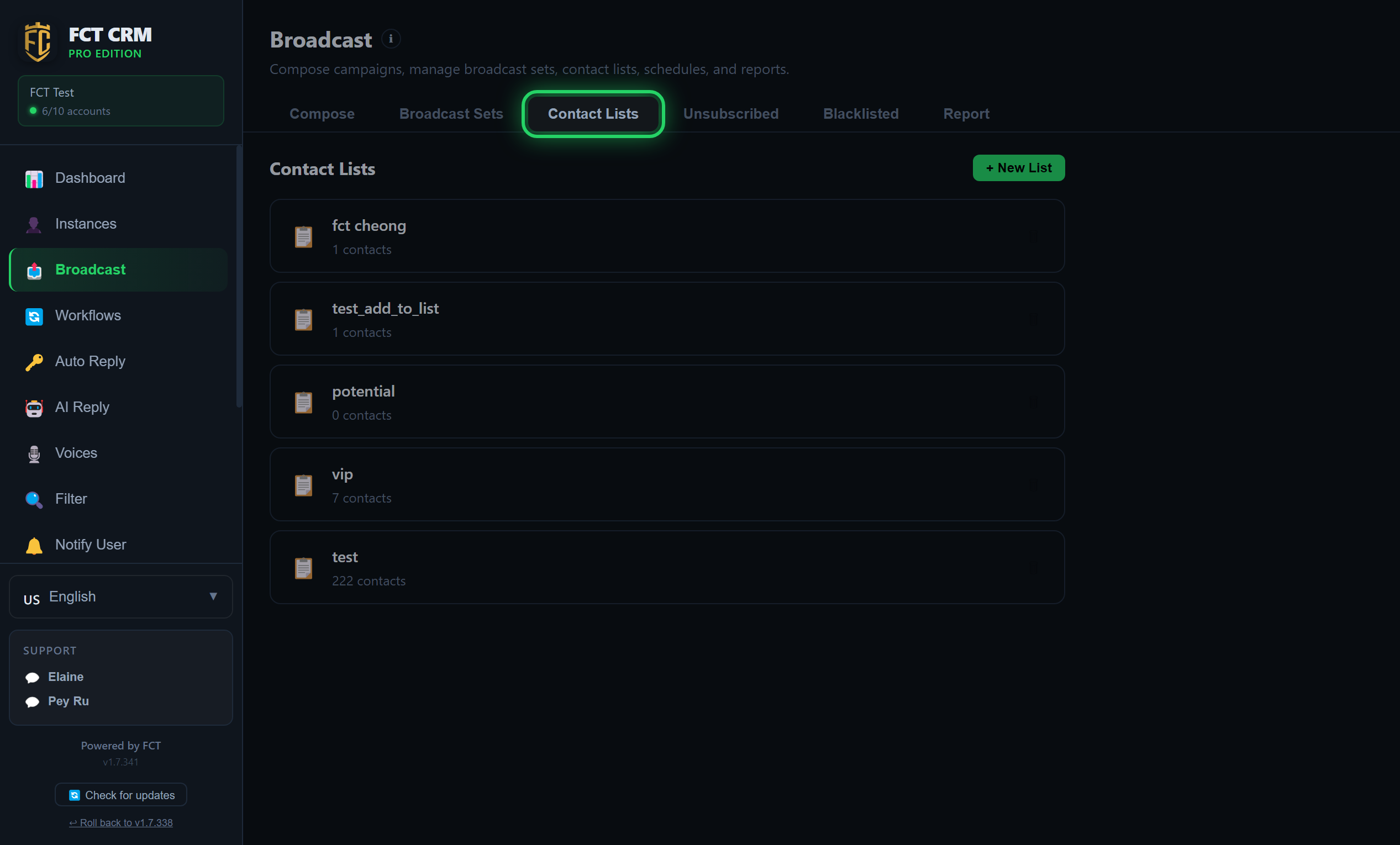
Contact lists live in the Broadcast → Contact Lists tab.
- Open Broadcast in the sidebar and click the Contact Lists tab.
- Open a list and click Edit Members to add contacts (or import numbers).
- When you import from a file, write the column names in the first row of the sheet: write
phonefor the phone column andnamefor the name column. Other columns can be custom fields such ascityorplan. Custom fields can later be used as variables in a message ({city}).
Once the list is open, add people with the steps below:
- On this page, click the list you want to use. You will see its current members, and an Edit Members button at the upper right.
- Click Edit Members. Three tabs appear at the top: Select Contacts, Type Numbers and Upload File.
- With Select Contacts, find people in the search box, or click a tag after Filter by tag to narrow things down. Tick the people you want to add, then click the save button at the top. The button shows how many are selected.
- With Type Numbers, write one number per line. To include a name, write the name, a comma, then the number. When you are done, click Import Numbers.
- With Upload File, click Choose File and pick an Excel, CSV or text file. The page shows a preview. When it looks right, click Import to List.
- When the import finishes, a result line shows how many were added, newly created, skipped and invalid. Click Back to return to the list.
You can also just drag a file in
After opening a list, drag an Excel or CSV file straight into the window. It is imported immediately, without showing you a preview first.
Create a contact list
- In Contact Lists, click + New List and give it a name.
- Add contacts to the list (by importing, or by picking existing contacts).
Here is exactly how to do it:
- Click the green New List button at the top right. The button turns into an input box.
- Type the name of the list, for example "VIP Customers", then click Save, or simply press Enter. If you change your mind, click Cancel.
- The new list appears below, with "0 contacts" written under its name.
- Click the new list to open it, then click Edit Members and add people the way the previous section describes.
- To change the name later, open the list and click Rename. To remove the whole list, click Delete and confirm.
Deleting a list does not delete the contacts
Only the list itself is deleted. The contacts in it stay in the system.
Tips
Keep numbers in a standard format
Use the full international format (for example 60123456789). Before sending, FCT CRM checks which numbers are really on WhatsApp.
Unsubscribes and the blacklist
Numbers under Unsubscribed or Blacklisted are skipped automatically when you broadcast.
Next step
→ Send a broadcast to a list.