AI Reply
Let the AI reply to customers using a prompt that you design. There are five tabs at the top: Prompt Set, Configuration, Test Chat, FAQ and Statistics. The AI provider's API key, translation and speech-to-text are set on the Engines page.
The banner at the top of the page, "🪄 Let the AI build the whole set-up for you", opens the AI Setup Assistant. Tell it about your business and give it a price list or a website, and it writes the FAQ, the AI prompt, the opener and the broadcast sets, and installs them on the number you choose. After it has been installed once, the banner turns into a "🪄 Set up again" button.
Prompt Set: write and assign the AI's persona and instructions. A number with no prompt assigned does not reply with AI.
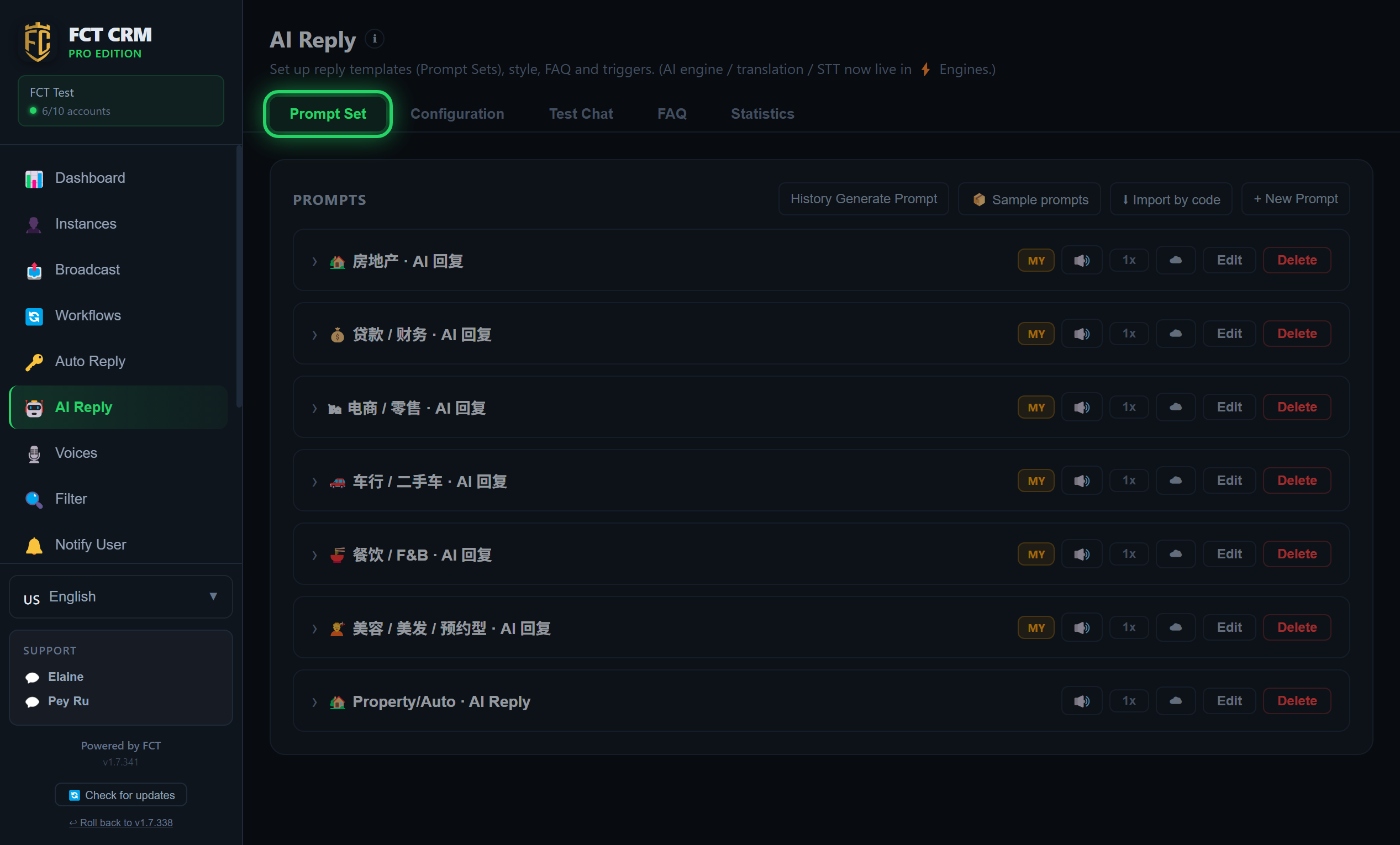
- Click AI Reply in the left menu. The page opens on the Prompt Set tab.
- Click New Prompt at the top right. Fill in the Prompt Name, and in System Prompt describe clearly who the AI is, what it sells and how it should answer. Then click Save. If you do not know how to write it, click Help me write a prompt (Wizard).
- To look at examples first, click Sample prompts and choose a language. Several samples for different industries are added to the list. Click Edit on one and change it to your own details.
- Back on the list, click a prompt's name to expand it and read the full text. Click Edit to change it and Delete to remove it.
- To assign a prompt to a number, go to the Instances page and click Edit on that number. In Reply routing, tick AI Reply, then pick this prompt from the Choose a prompt dropdown, and finally click Save.
- Come back here, and a green In Use badge appears to the right of the assigned prompt.
The step most often missed
Writing the prompt is not enough. A number that has no prompt assigned on the Instances page does not reply with AI.
Configuration: reply speed, context, keywords and the smart filter.
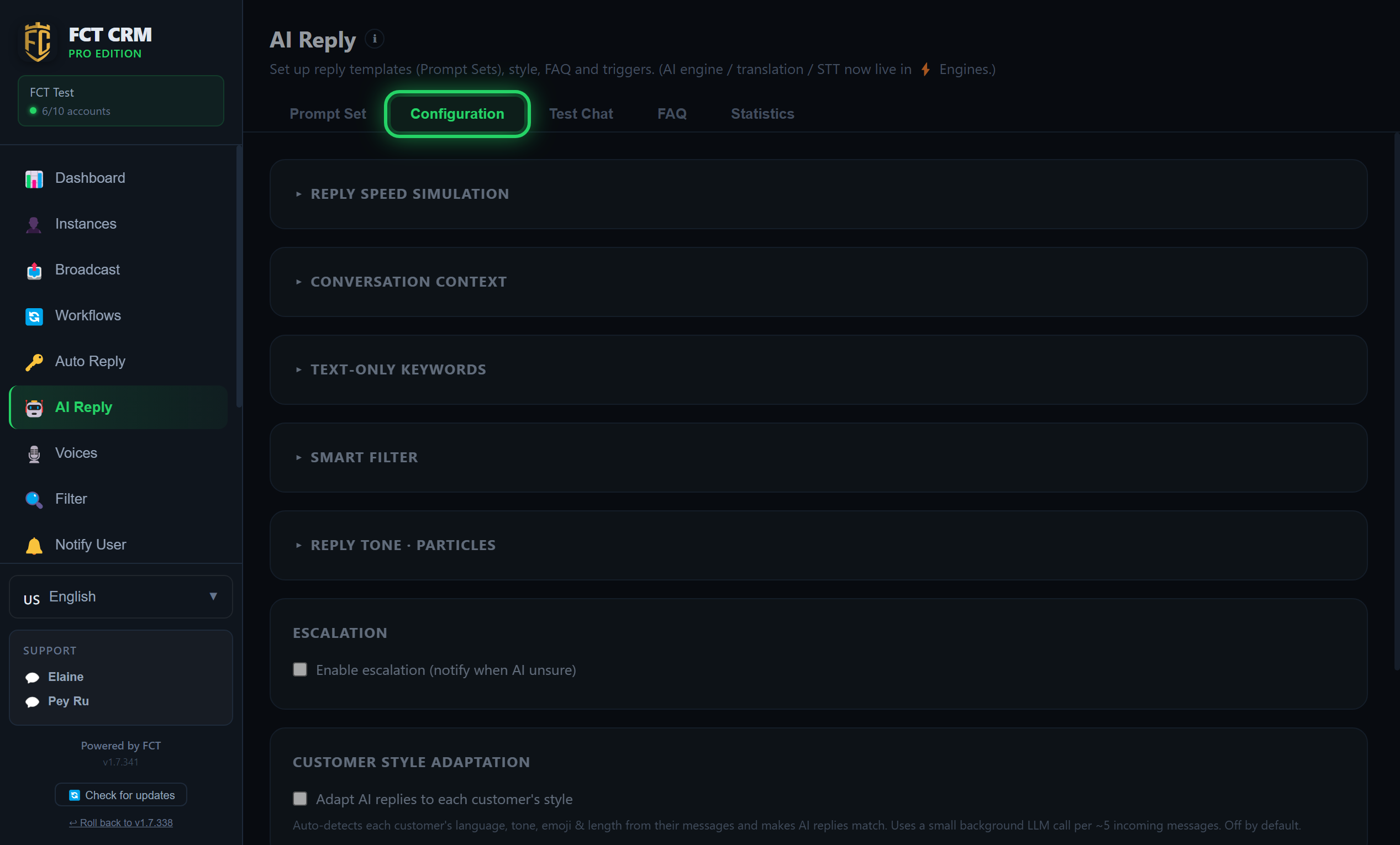
- Click the Configuration tab at the top. Click the title of any section to expand it.
- Expand Reply Speed Simulation and drag the Min delay and Max delay sliders to set the range of seconds the AI waits before replying.
- Expand Conversation Context and type a number in Keep recent messages. Older messages beyond that number are automatically compressed into a summary.
- Expand Text-Only Keywords, type a word and click Add. Whenever the AI's reply contains one of these words, such as a price or a web address, it is sent as text and is not turned into a voice note.
- Expand Smart Filter and set Min message length and Daily reply limit. Tick Skip forwarded messages and Skip media-only (no text) as needed.
- If you want the AI to notify you when it is unsure, tick Enable escalation under Escalation, then fill in a Hold message to send to the customer.
- Scroll to the very bottom and click Save. It is only done when Saved appears next to the button.
Test Chat: try your AI reply before going live.
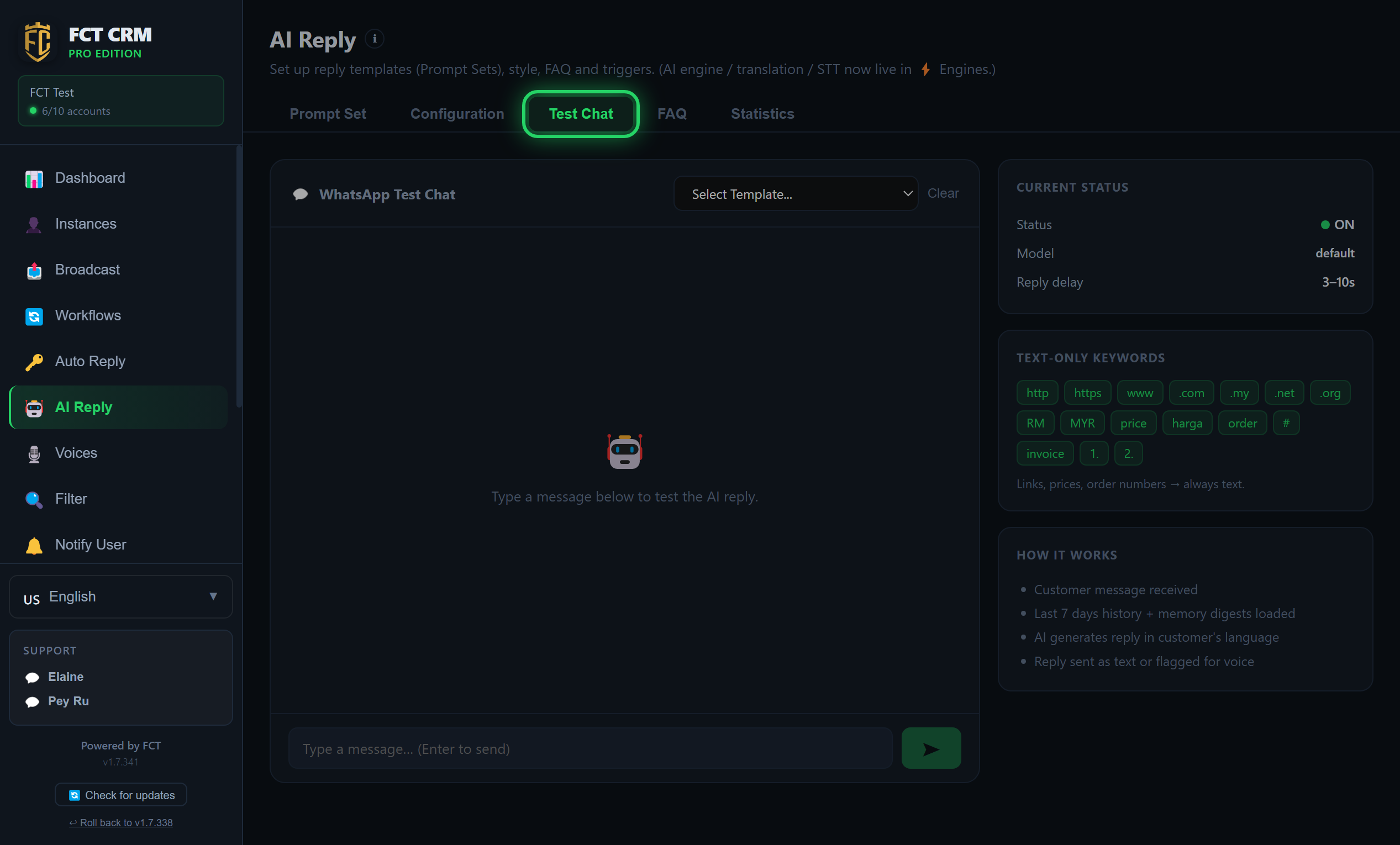
- Click the Test Chat tab at the top.
- In the Select Template... dropdown at the top right of the chat box, choose the prompt you want to test. Until you choose one, the send button is greyed out and cannot be pressed.
- In the input box at the bottom, type a sentence the way a customer would, and press Enter to send.
- Wait a few seconds. The AI's reply appears in the chat, labelled Text send or Voice send underneath, together with how long this reply took.
- Ask several more questions, especially the ones customers ask most, such as prices and opening hours. If an answer is wrong, go back to Prompt Set to change the prompt, then come back and test again.
- To start over, click Clear at the top right.
The Current Status card on the right shows the current status, the model and the reply delay, so you can check them at the same time.
FAQ: a zero-hallucination question and answer knowledge base.
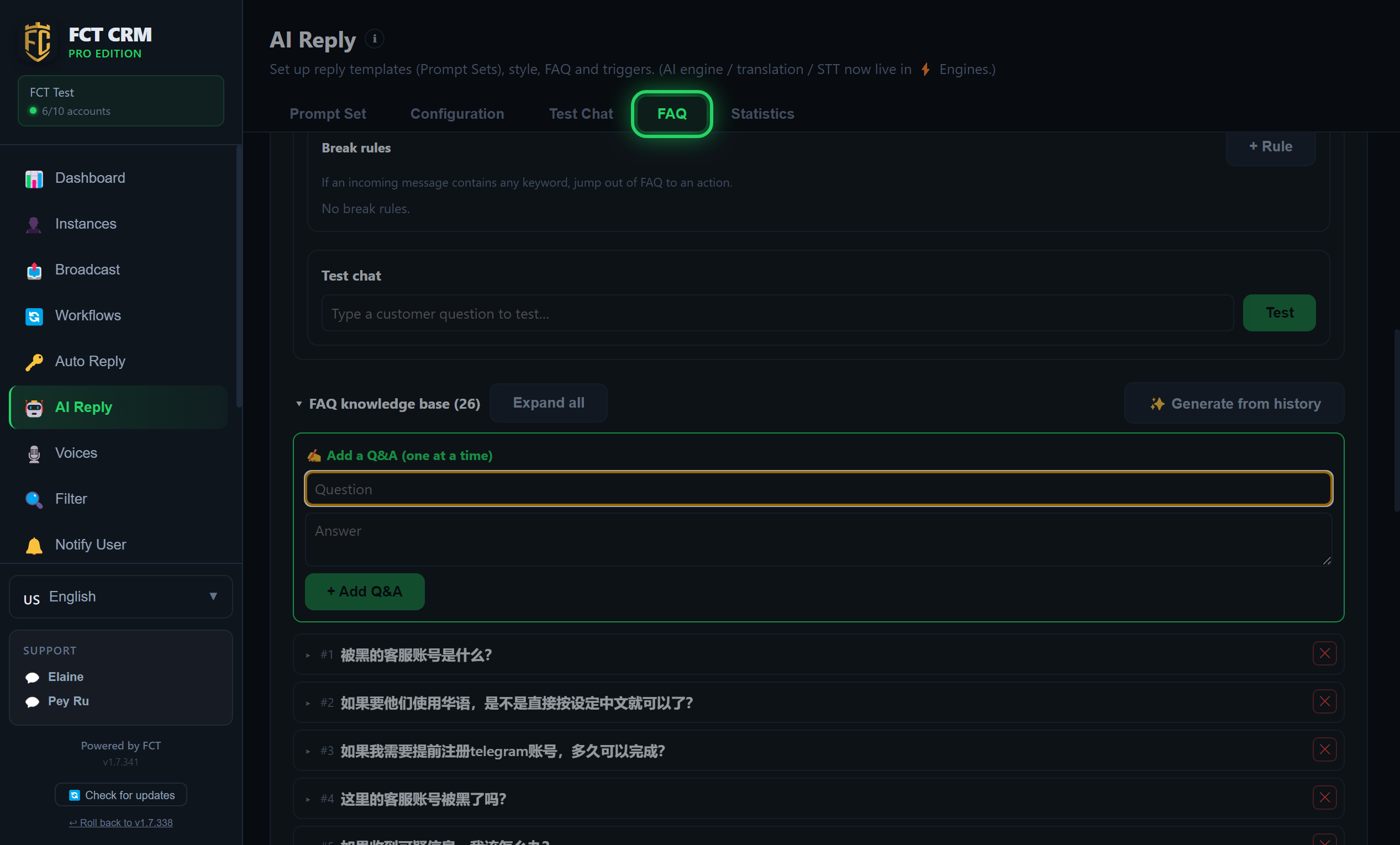
- Click the FAQ tab at the top and scroll down to FAQ knowledge base.
- In the Add a Q&A box, type how a customer would ask under Question and what you want to reply under Answer, then click Add Q&A. The new entry appears in the list below.
- To match on a picture, click Add image entry and choose an image. The system first writes a description of the image. You then fill in the answer and click Add Q&A.
- To collect questions and answers in bulk from past chats, click Generate from history on the right.
- In Your business details above, the items marked sample need to be changed to your own shop name, prices and hours. Click Save when you have changed them.
- Finally, go to the Instances page, click Edit on that number, choose this project under FAQ project in Reply routing, and click Save.
The sample details are fake
The shop name and prices in the sample details are all made up. Be sure to replace them with your own before you serve real customers.
Statistics: view the AI reply statistics, which reset every day at midnight.
Click the Statistics tab at the top to see Replies Today, Avg Response Time, and how many Text Replies and Voice Replies went out today. This page is only for viewing, and there is nothing to set up here.