One-Click Onboarding for an Official WhatsApp Business Number (WABA): Illustrated Walkthrough
FCT CRM is a Meta-certified Tech Provider. Using one-click onboarding (Embedded Signup), it can bring an official WhatsApp Business Platform (WABA) number into the app for you in a few minutes, so you do not have to go through Meta's developer process from scratch yourself.
Know this before you start: a QR number and a WABA number are mutually exclusive
A phone number can only be a WhatsApp QR-scanned number or an official WABA number. It cannot be both at the same time.Never take an existing QR-scanned number that is in use and convert it to WABA. Forcing the switch leaves that number "frozen" inside WhatsApp. Onboarding to WABA must be done with a brand-new phone number.
Exception: is the number already in use in the WhatsApp Business App on a phone? You can use "Keep the phone app, connect both (保留手机 App,一起接入)" (Coexistence). There is no need for a new number, and the phone keeps working as usual. See A number already in use in the WhatsApp Business App on a phone below.
Before you start
- A brand-new phone number: one that has never been registered or logged in on WhatsApp or the WhatsApp Business App, on a real SIM card (able to receive an SMS or a voice verification code; Meta often rejects virtual and VoIP numbers). If the number was registered on WhatsApp before, delete that account in the phone app first and wait a few minutes before using it.
- A Facebook account: we recommend logging in with your regular, long-standing personal account to do the onboarding (an old account is less likely to be flagged by Meta's risk controls, while a throwaway account is more likely to be blocked).
- Basic business details: company name, address (country), website and industry category.
- A business display name: the WhatsApp business name your customers will see. Meta reviews it, and it must relate to your real business (see the notes further down).
- A credit card: used to set up billing for WhatsApp conversations with Meta. This money is charged to you directly by Meta, and it is a separate bill from our software subscription fee. You can add it now, or add it later after the onboarding is complete.
Step-by-step with screenshots
1. Open the one-click onboarding entry in FCT CRM
On the Instances page, click ☁️ Connect WABA (official) at the top right. The popup gives you an Open authorization page button. Click it and your browser opens Meta's official onboarding page. The app keeps waiting on its side: once you finish the process on Meta's side, it connects automatically.
2. Meta popup: confirm the connection
When the browser opens, Meta first shows a confirmation box explaining what this onboarding process can do. Click Continue to go on.
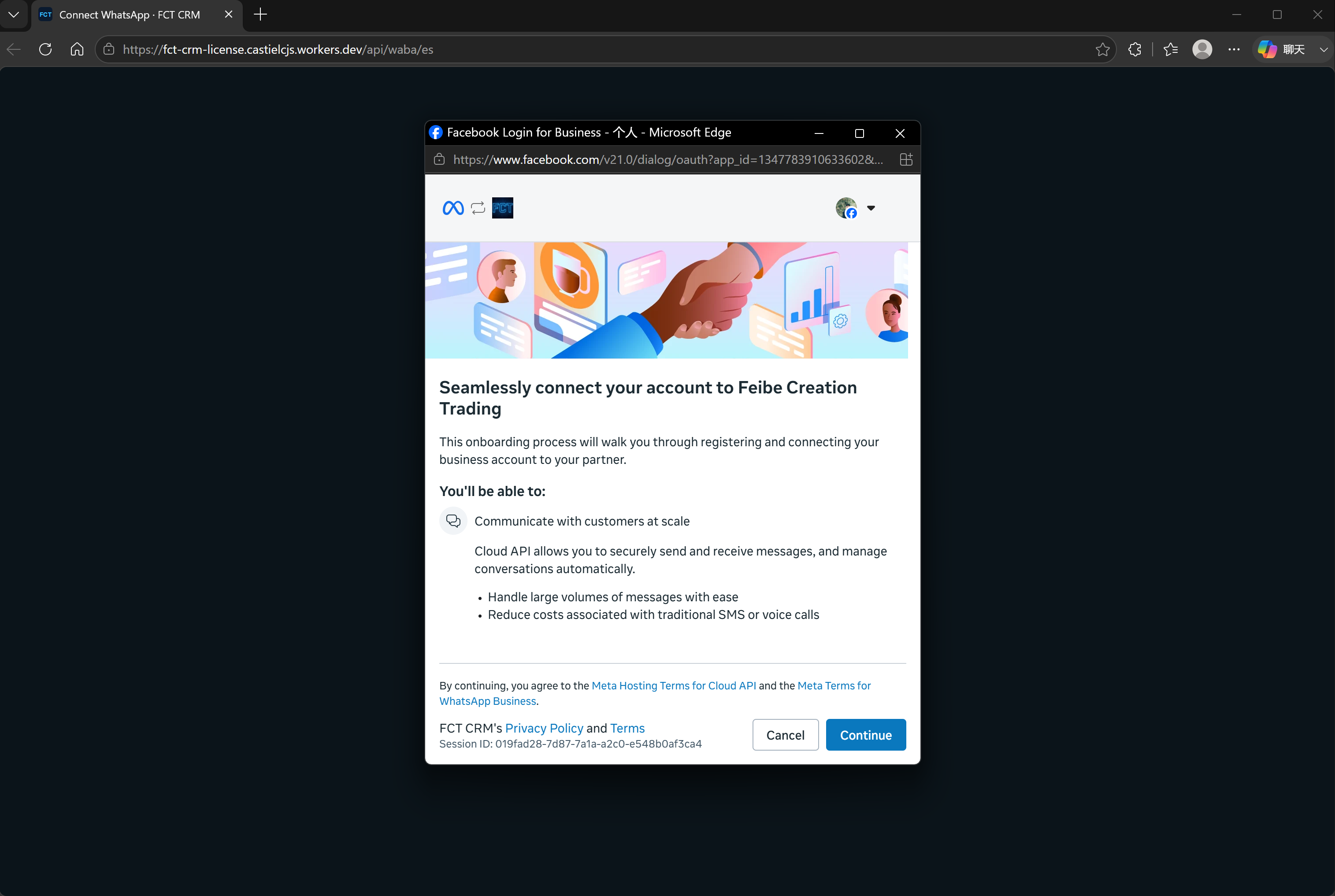
Before you click, glance at the profile picture at the top right of the popup and confirm that the Facebook account currently logged in is the one you intend to use for the onboarding. If you do not want to continue, click Cancel.
3. Choose the business assets to share
Next, choose a Business portfolio. If you already have an existing Business portfolio that you have full control of, you can simply select it. If you do not, we recommend creating a clean new one, so it is not mixed up with any other business.
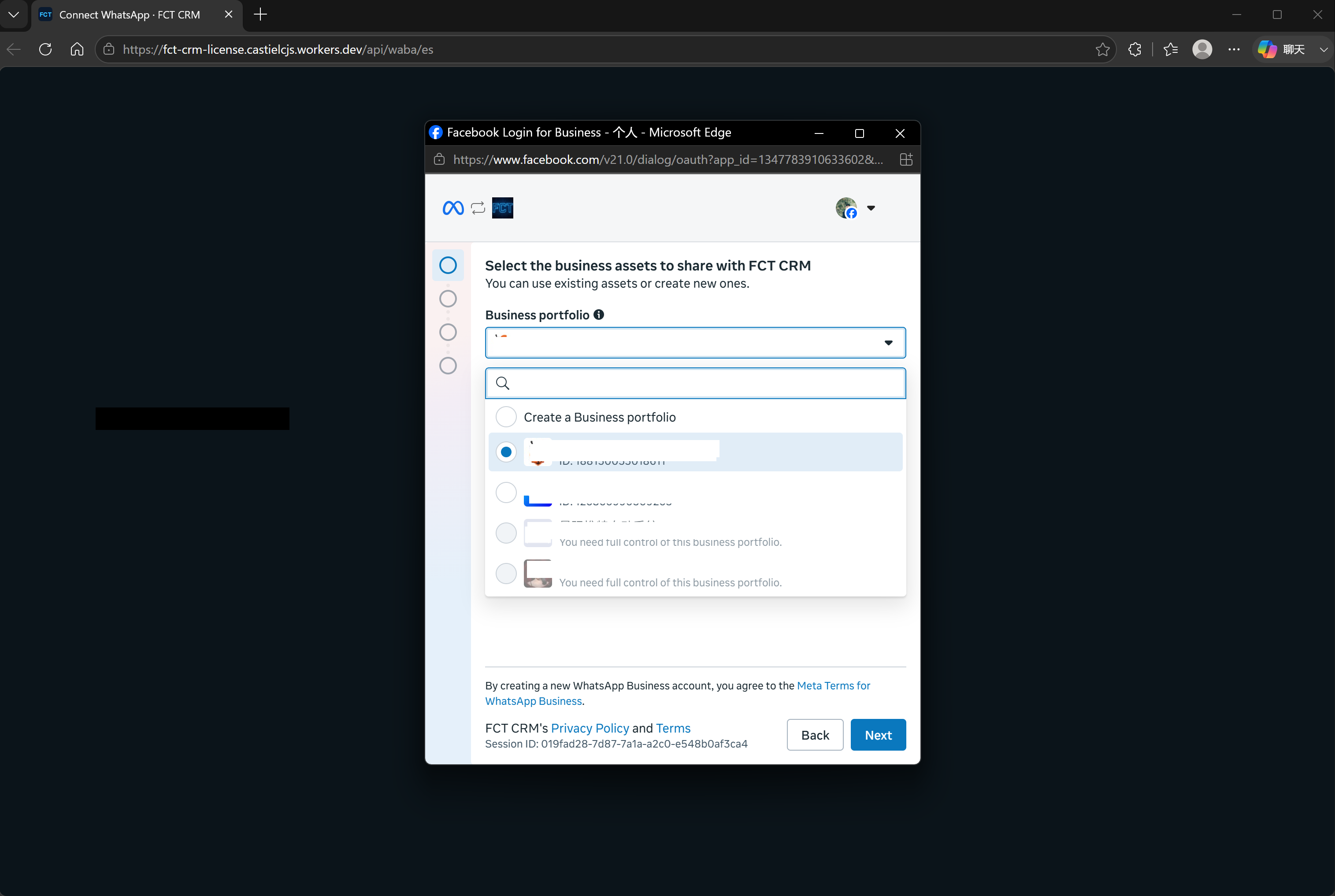
- Click the dropdown under Business portfolio and the list opens.
- To create a new one, choose Create a Business portfolio at the very top. To use an existing one, click the circle in front of it.
- The ones that are greyed out, with "You need full control of this business portfolio" written underneath, cannot be selected. You can ignore them.
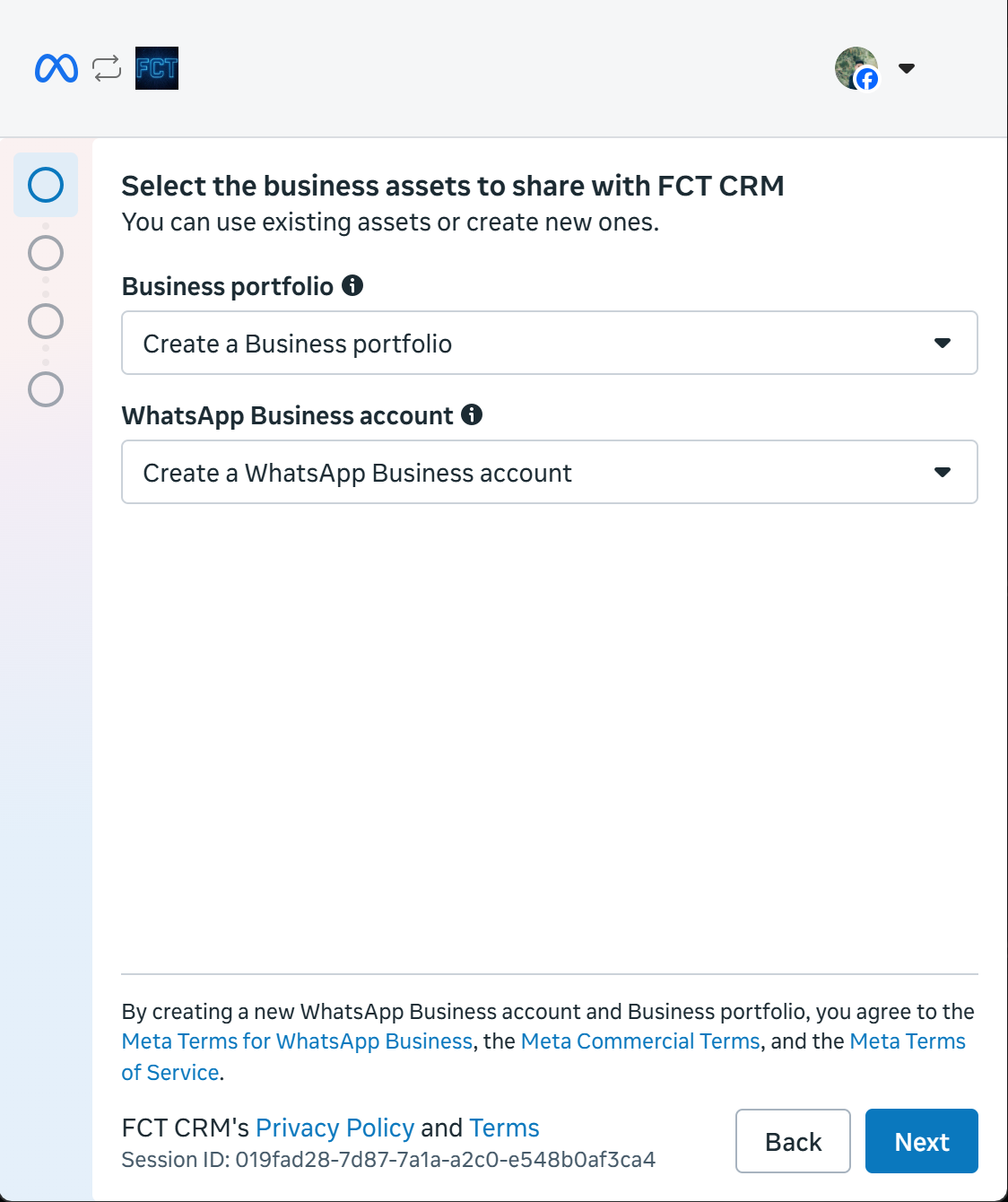
Once you have chosen, the screen shows a new Business portfolio and a new WhatsApp Business account, both set to Create.... Click Next.
4. Fill in your business details
Fill in Name (the company name), Email, Category (the industry category), Country (choose Malaysia), Website and Time zone.
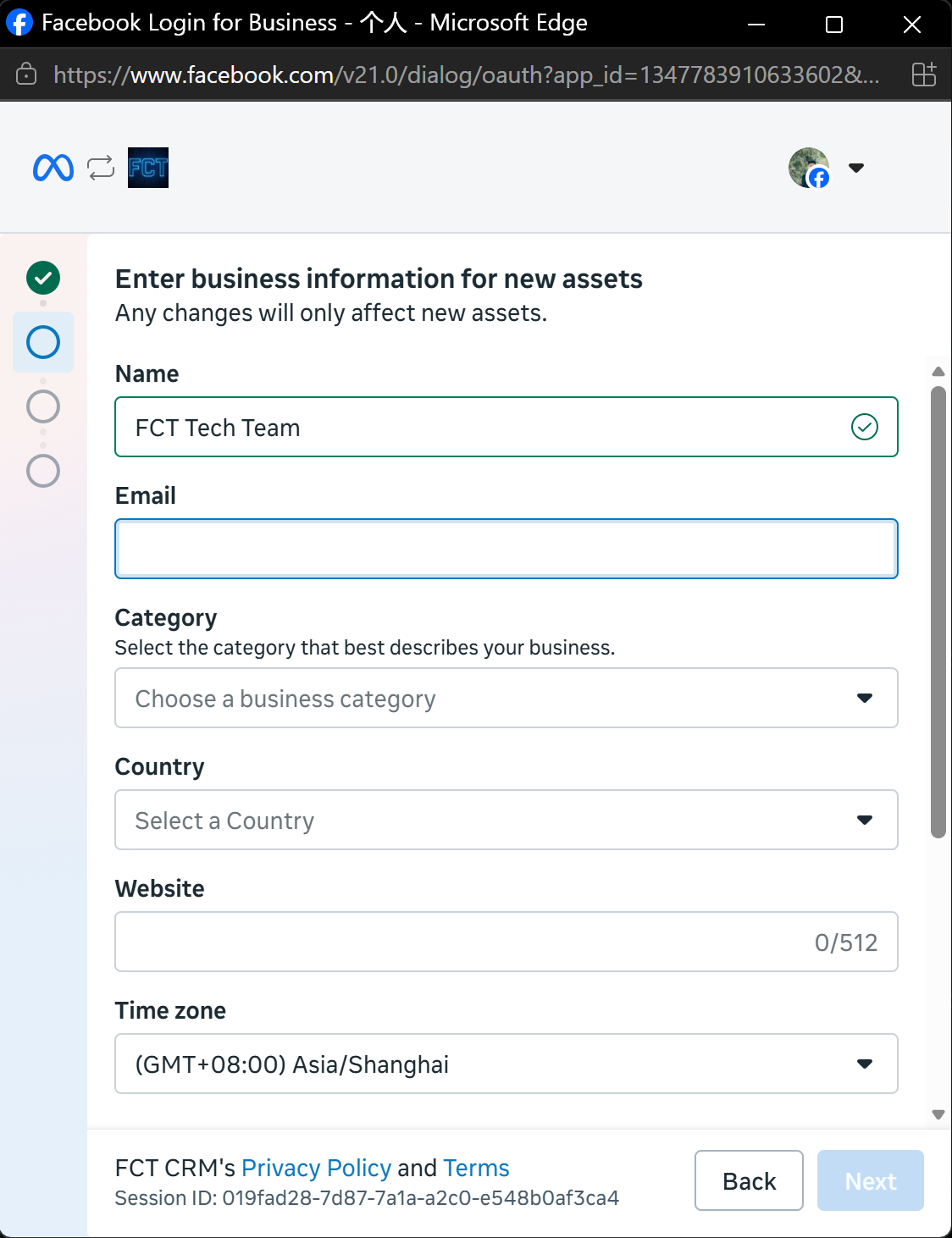
Fill in the fields one by one from top to bottom. Category and Country are dropdowns: click to open them and choose. The form is longer than the window, so you need to scroll down to see the later fields. In the screenshot the form is not finished yet, so the Next button at the bottom right is pale.
Choose your industry category truthfully, and avoid the sensitive ones
The dropdown list includes sensitive categories such as Alcoholic Beverages, Finance and Banking, Government, Medical and Health, and Online / Non-Online Gambling & Gaming. Do not choose one of these unless your business really belongs to it. Accounts in these categories are more likely to be rejected or throttled by Meta.
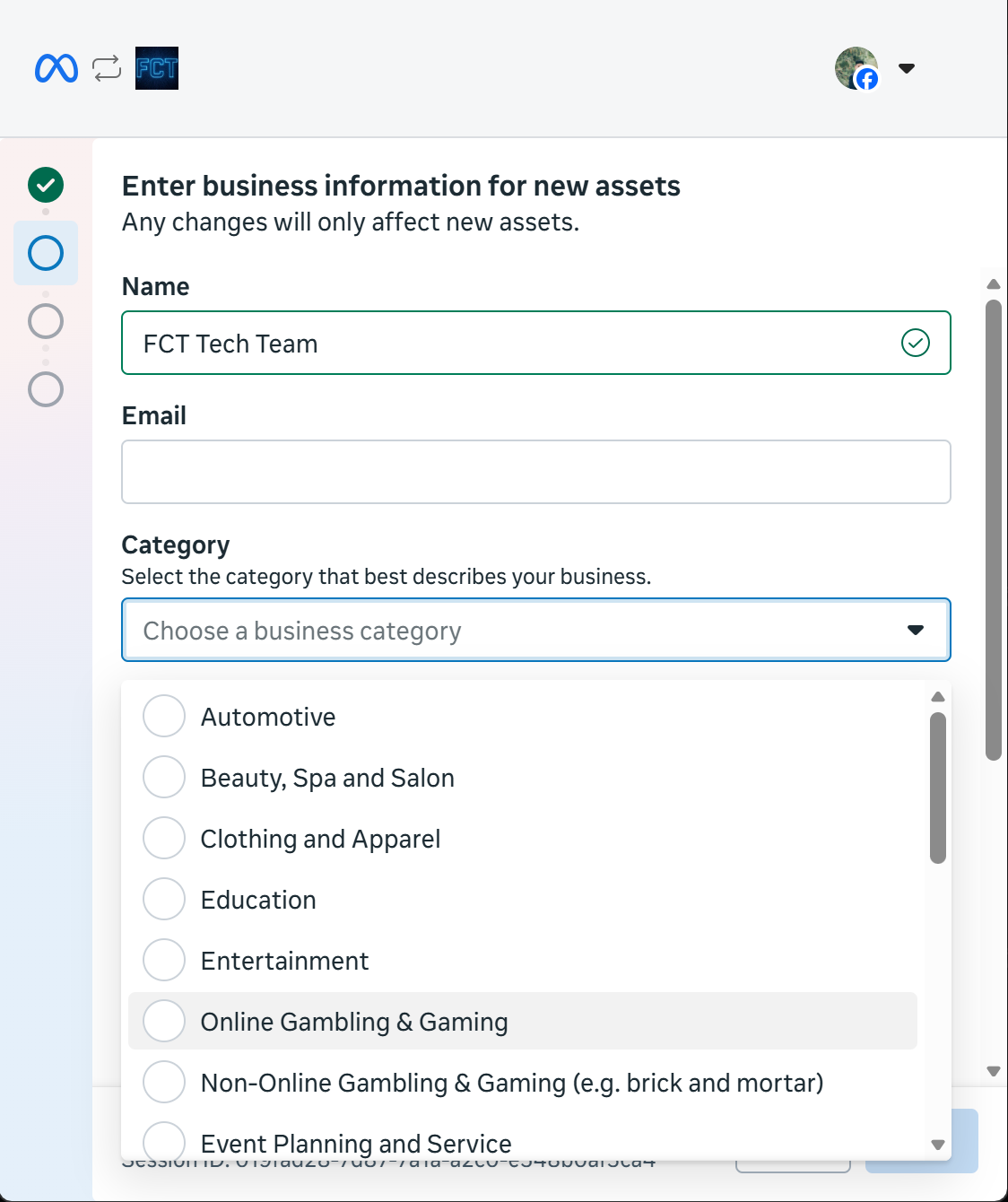
After you click Choose a business category, the list is long. The first screen shows entries such as Automotive, Beauty, Spa and Salon, and Education. Clicking the circle in front of a category selects it.
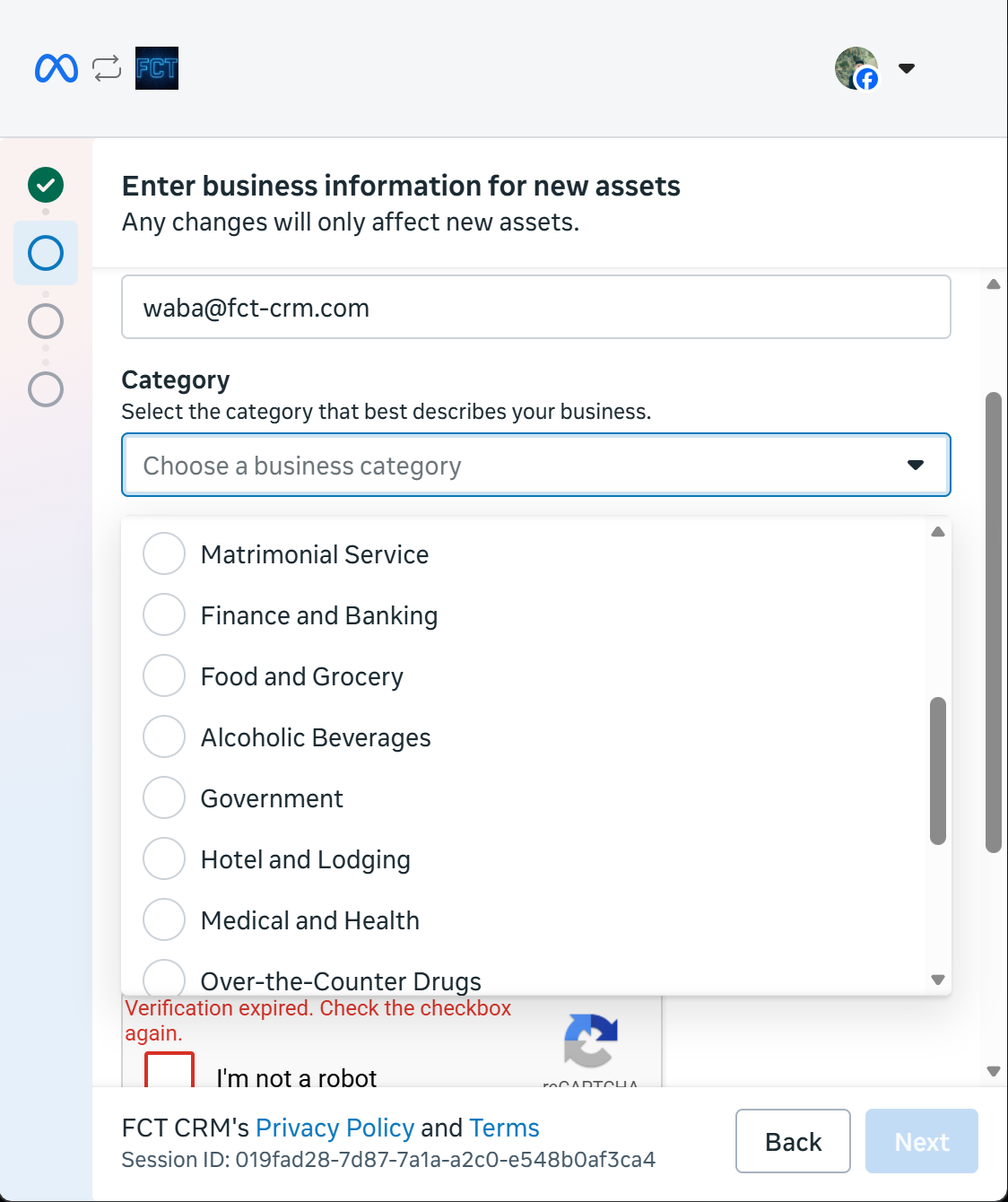
Keep scrolling down the list and you pass the sensitive categories Finance and Banking, Alcoholic Beverages, Government, and Medical and Health. If you do not belong to them, simply skip past.
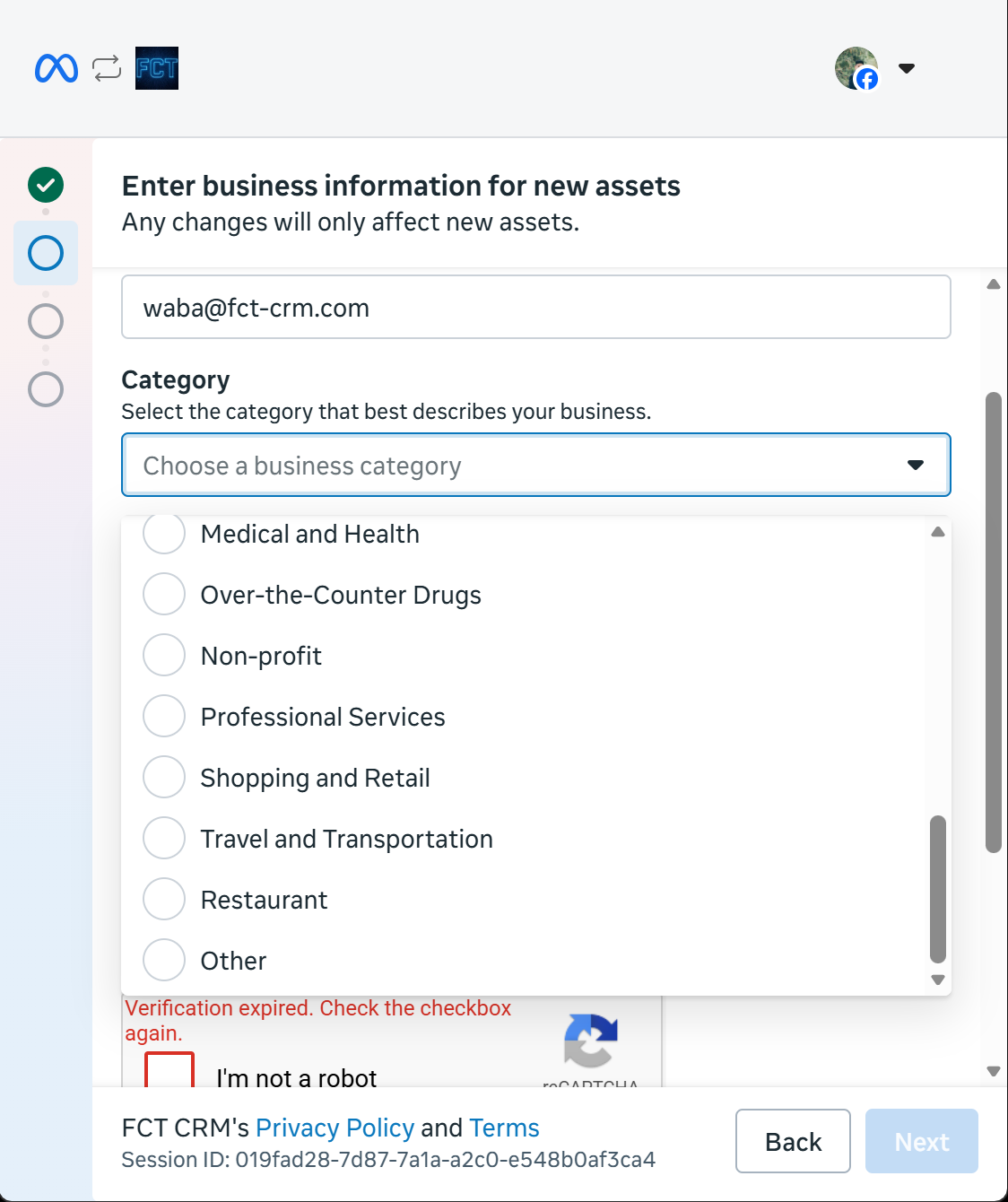
At the end of the list are common categories such as Professional Services, Shopping and Retail, Travel and Transportation, and Restaurant. Choose the one closest to your business. If none of them fits, choose Other at the very bottom.
The reCAPTCHA expires easily
If you tick "I'm not a robot" and then wait a while before clicking Next, you may see "Verification expired. Check the checkbox again." This is not a bug. Tick "I'm not a robot" again and then click Next, and it goes through.
5. Add the brand-new phone number and set the display name
Enter the brand-new phone number you prepared (mind the country code; for Malaysia choose MY +60), and the WhatsApp Business display name (the business name customers will see). Then choose whether to receive the verification code by text message or by phone call.
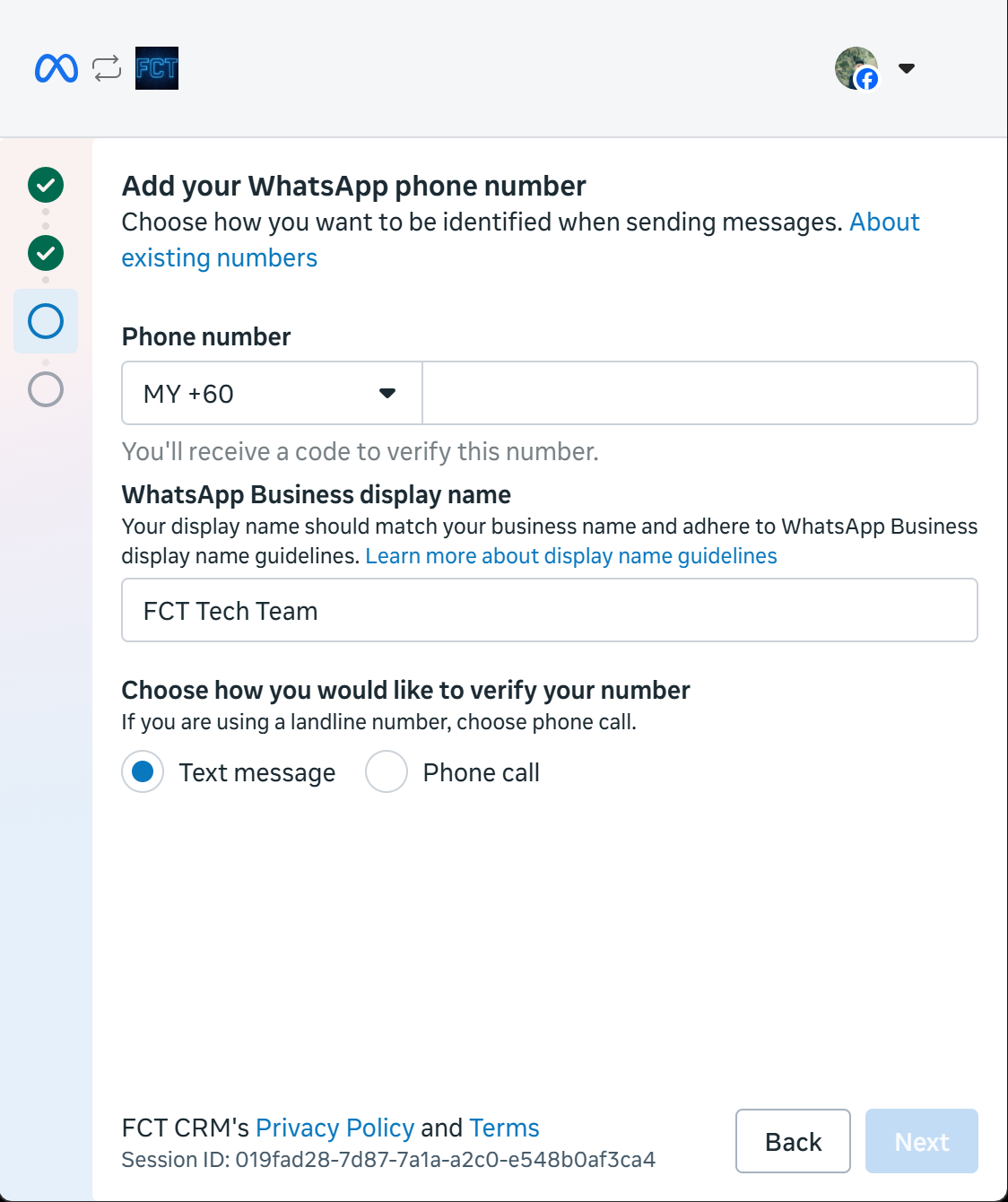
- In the dropdown to the left of Phone number, choose the country code, and type the phone number on the right.
- Under WhatsApp Business display name, type the name customers will see.
- Below that, choose Text message or Phone call to receive the verification code, then click Next.
When the code arrives, enter the 6 digits to complete the verification.
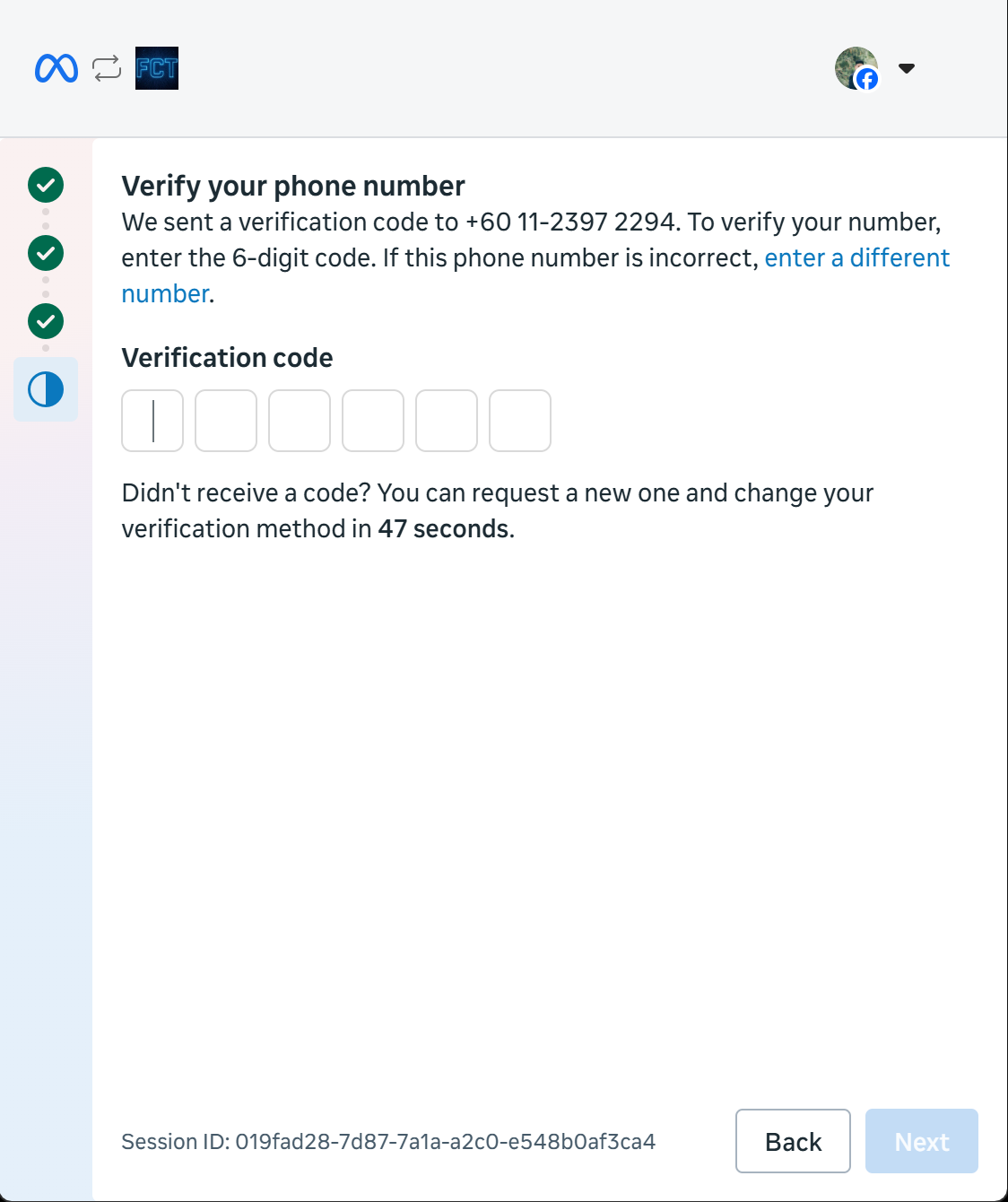
Type the 6 digits you received into the Verification code boxes one by one, then click Next. A countdown line on the page says that when the time is up you can request the code again, or switch to the other way of receiving it. If you typed the number wrongly, click the blue enter a different number link to go back and correct it.
6. Confirm the permissions
Meta lists the permissions FCT CRM will be given (managing the WhatsApp account, sending and receiving conversations, sending events to Meta on your behalf, and so on). When you have checked them, click Confirm.
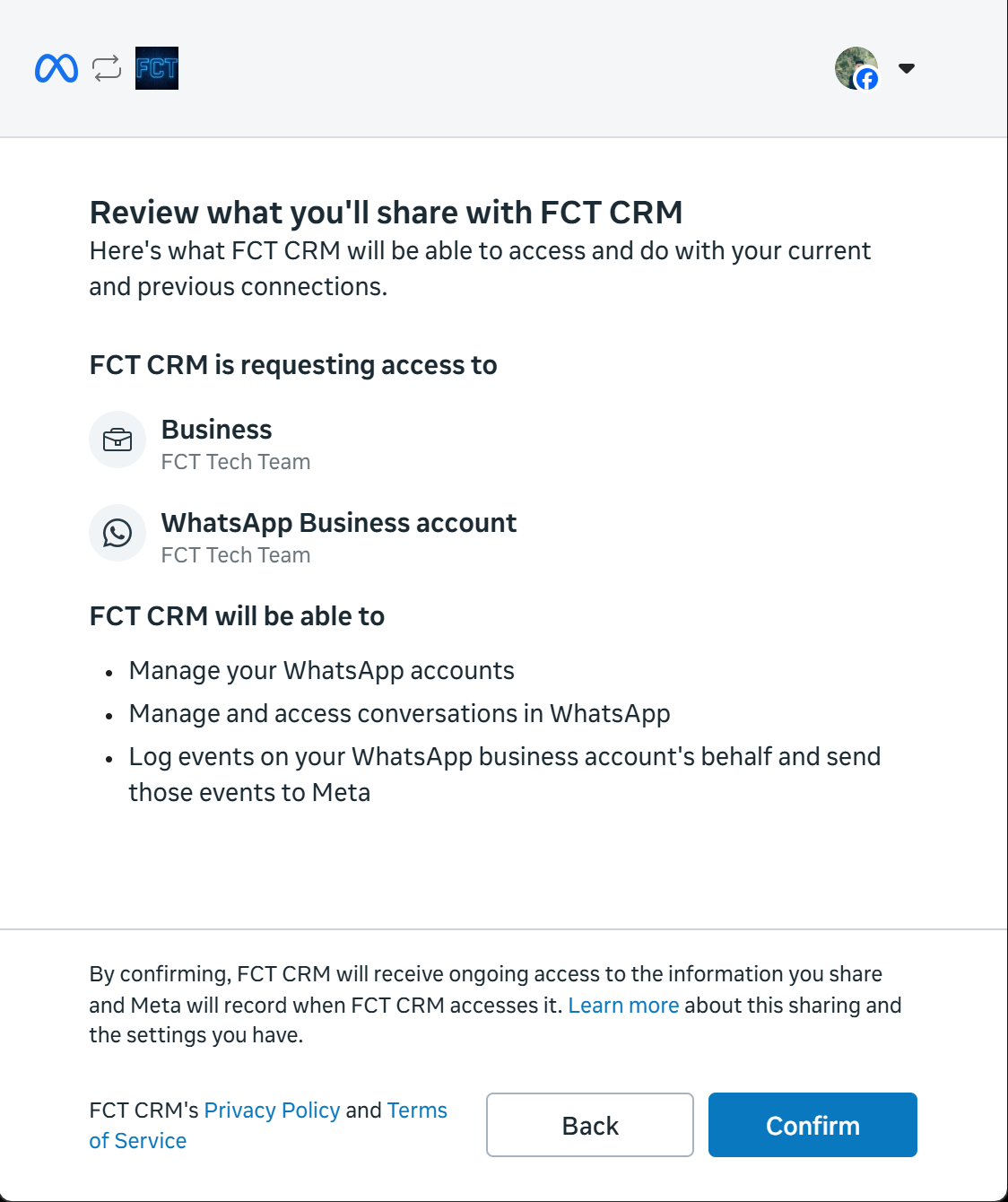
Check one thing before confirming: what is shown under Business and WhatsApp Business account should be the company name you just filled in. If it is wrong, click Back to go and correct it.
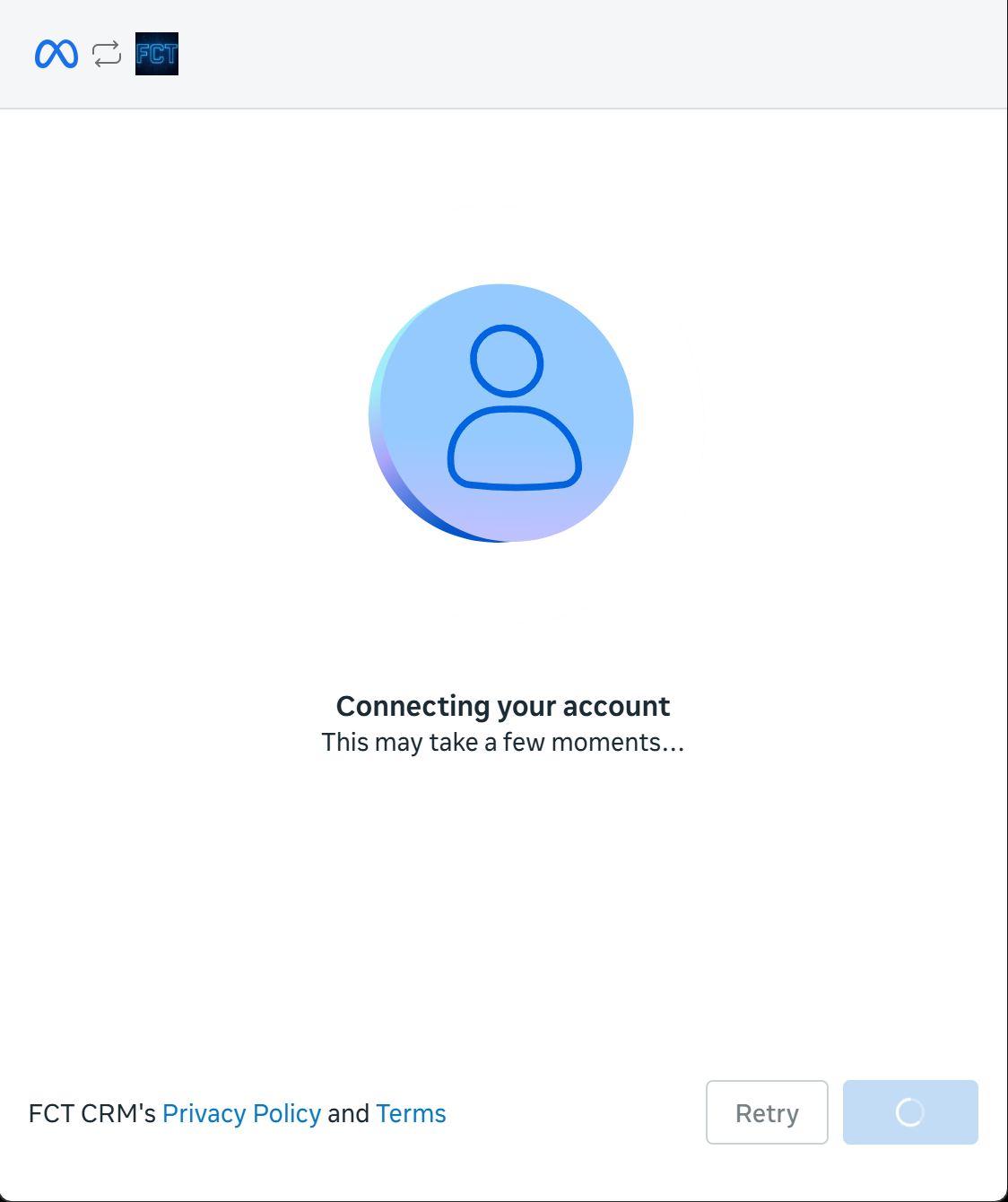
The system shows "Connecting your account...". Just wait a few seconds.
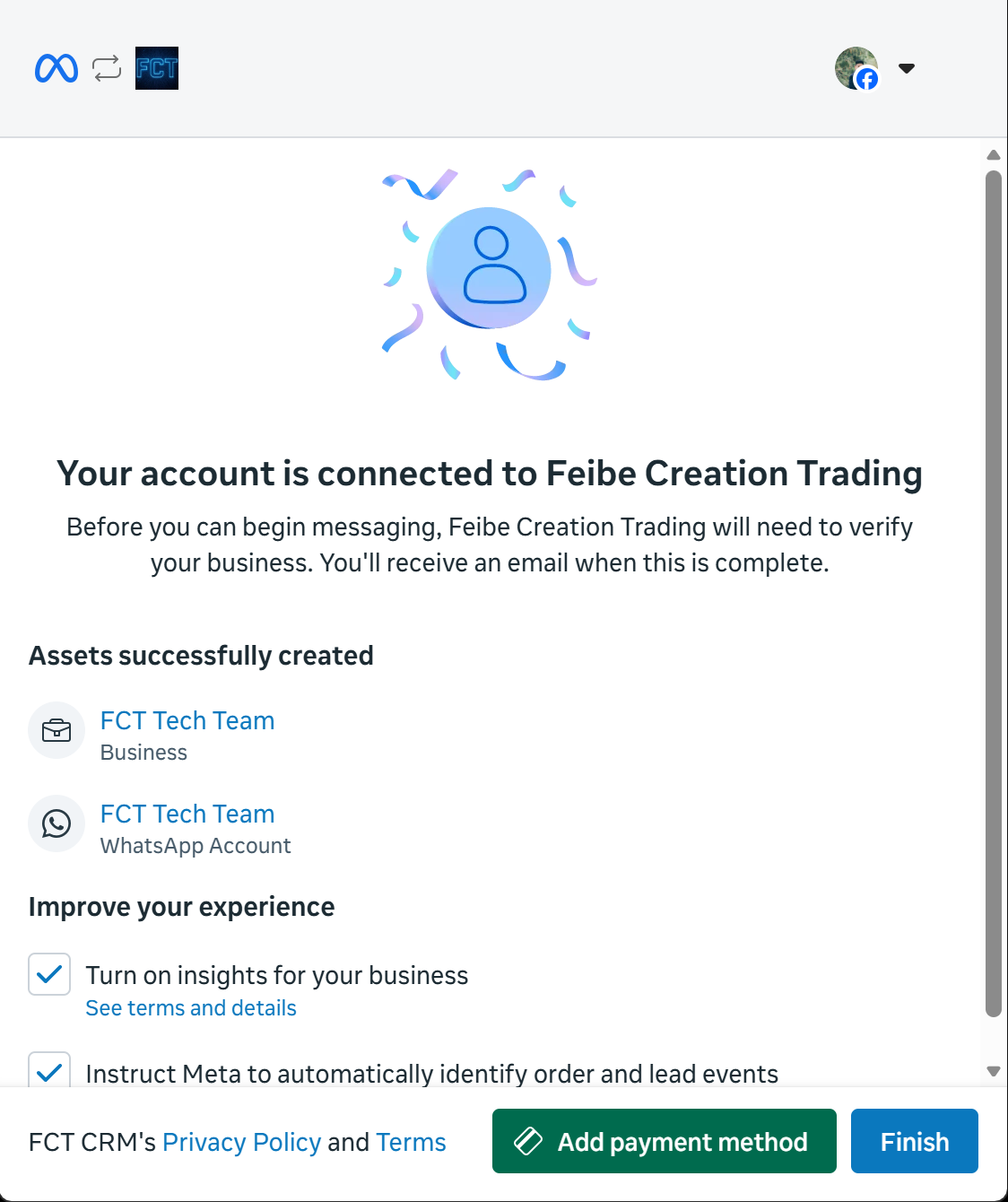
7. Connected, and the assets have been created
When you see "Your account is connected to Feibe Creation Trading", both assets, the Business and the WhatsApp Account, have been created. The two "Improve your experience" checkboxes at the bottom (turning on insights, and automatically reporting order and lead events) can be unticked if you wish. Here you can click Add payment method to add your card right now, or click Finish first and add the card later in the Meta Business dashboard. This does not affect the onboarding itself.
8. (Optional) Add your credit card now
If you chose "Add payment method" in the previous step, you are taken to the Billing & payments page of Meta Business.
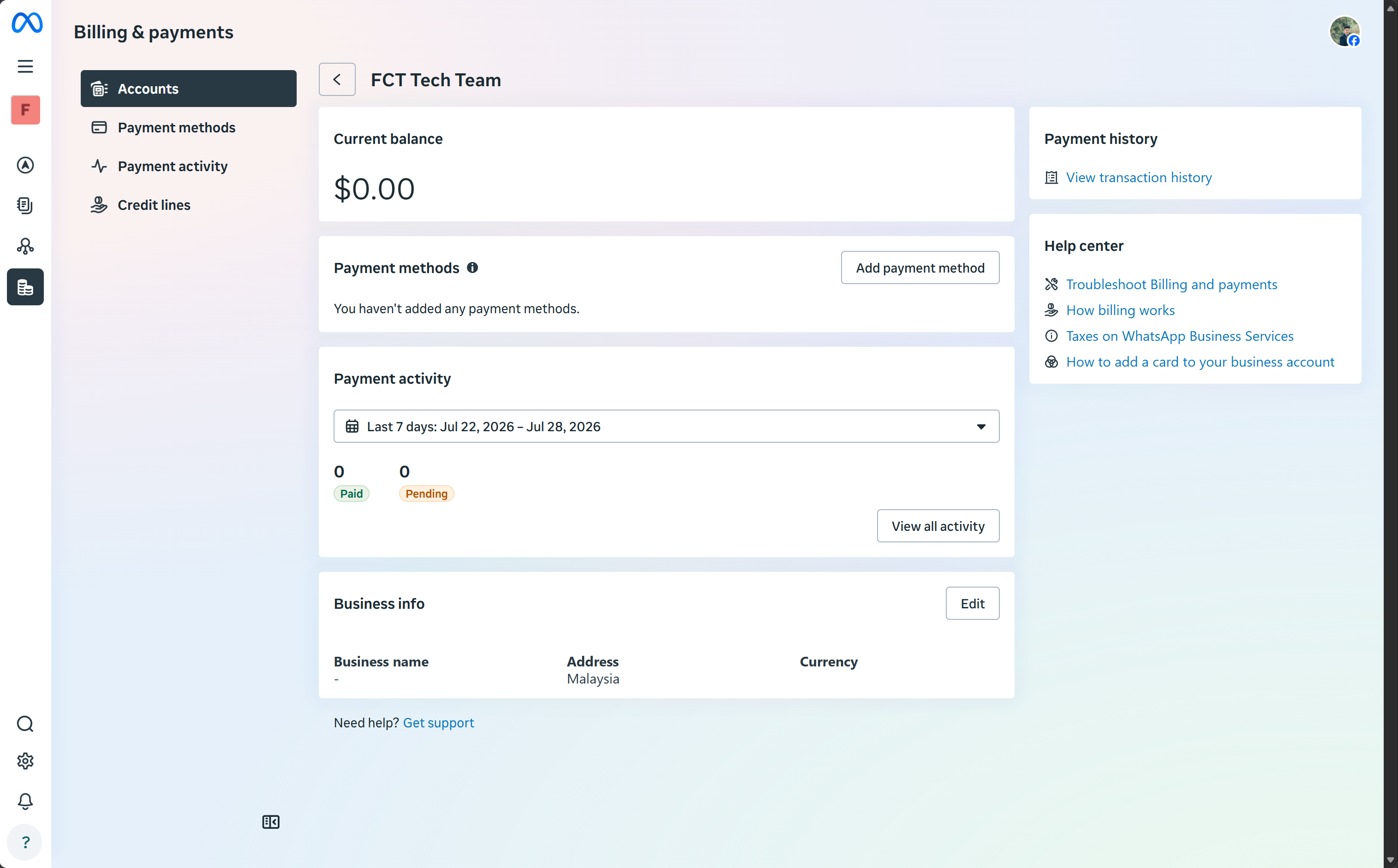
In the Payment methods section in the middle of this page, click Add payment method on the right to start adding your payment details.
First choose the country and currency (Malaysia and Malaysian Ringgit). Note that once this is set, it cannot be changed later.
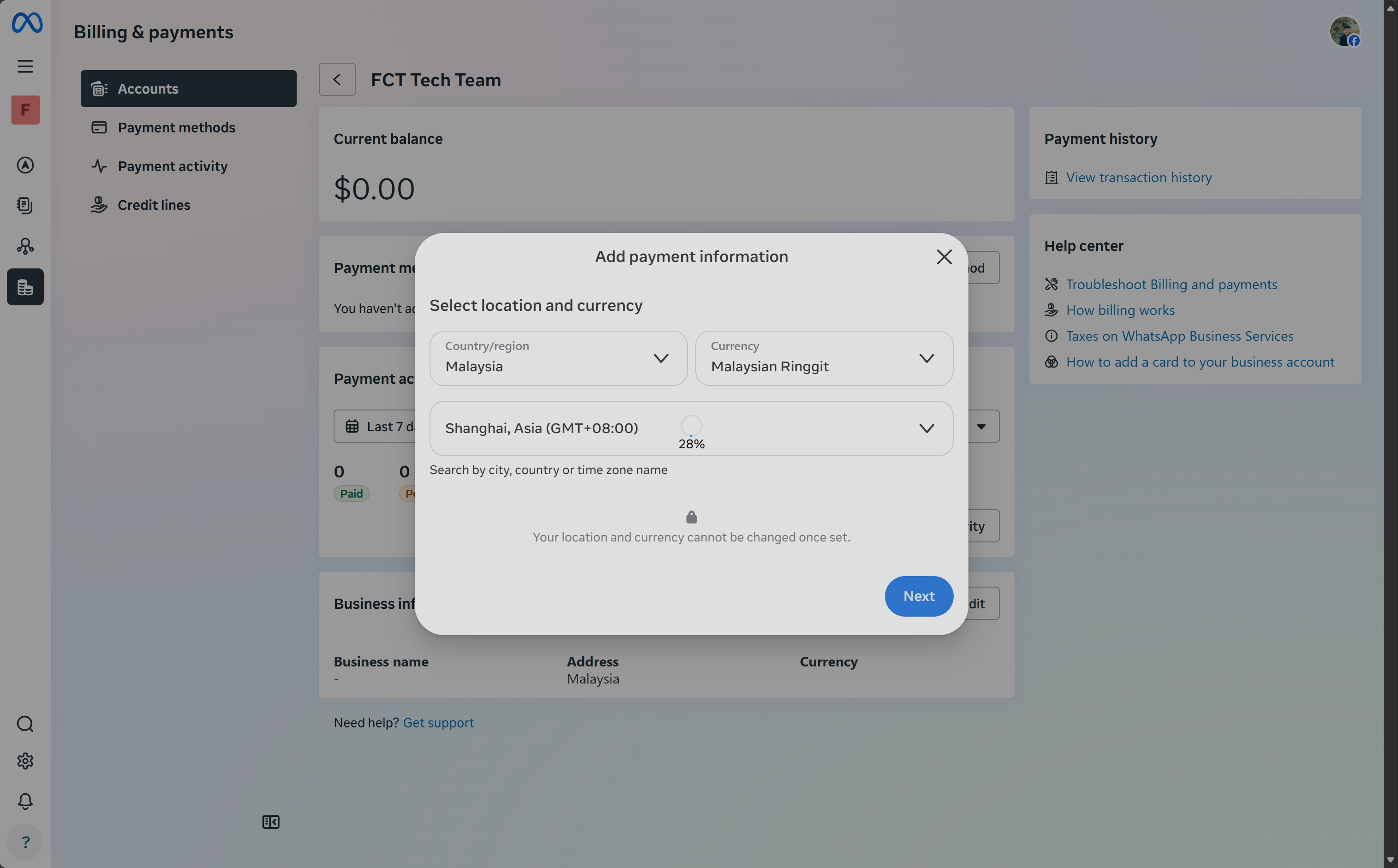
Choose the country under Country/region and the currency under Currency. The field below them is the time zone. A line of small print in the window reminds you that the region and currency cannot be changed once they are set. Click Next only when you are sure they are right.
After confirming the region and currency, choose the payment method (Debit or credit card).
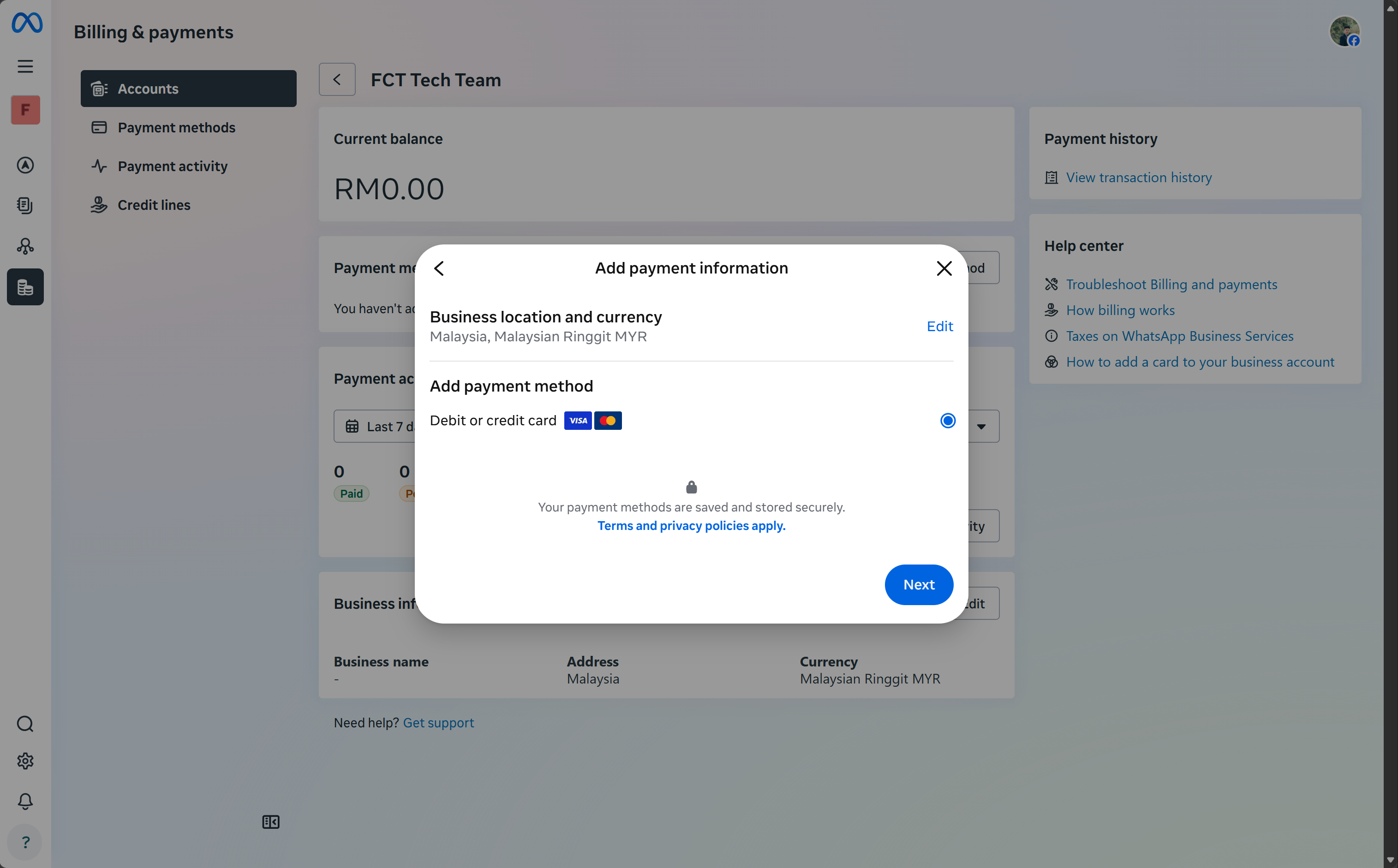
The region and currency you just chose are shown at the top here. Confirm that the dot to the right of Debit or credit card is selected, then click Next.
Enter the card number, the expiry date and the CVV, then click Save to finish adding the card.
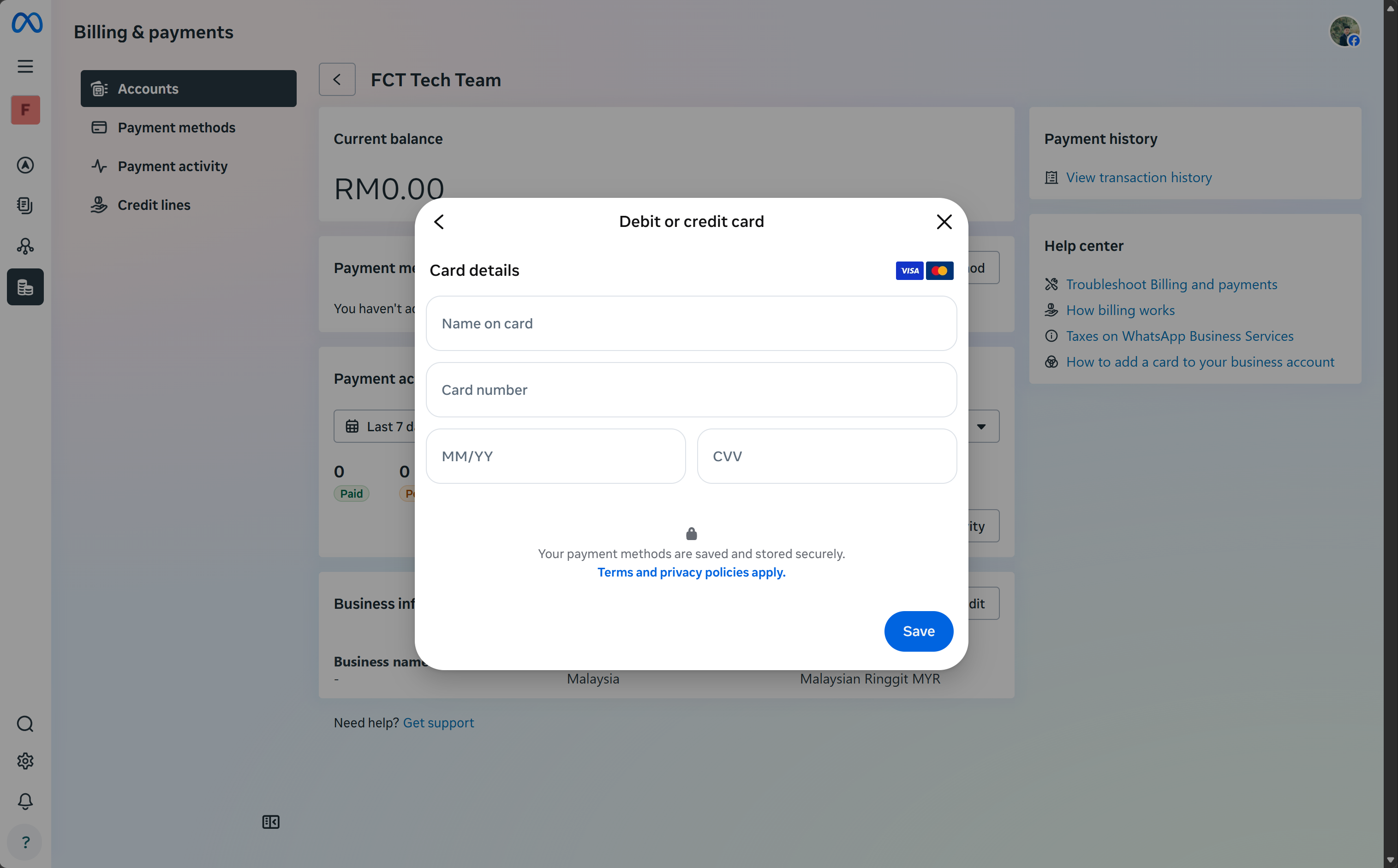
The four fields, in order, are Name on card, Card number, MM/YY (the month and year of expiry) and CVV (the security code). When they are all filled in, click Save at the bottom right.
9. Back to FCT CRM: it connects automatically, or you enter the pickup code by hand
After you finish the process on Meta's side, the browser returns to FCT CRM's own authorization page. This page shows an 8-character pickup code (valid for 15 minutes). Write it down or copy it straight away.
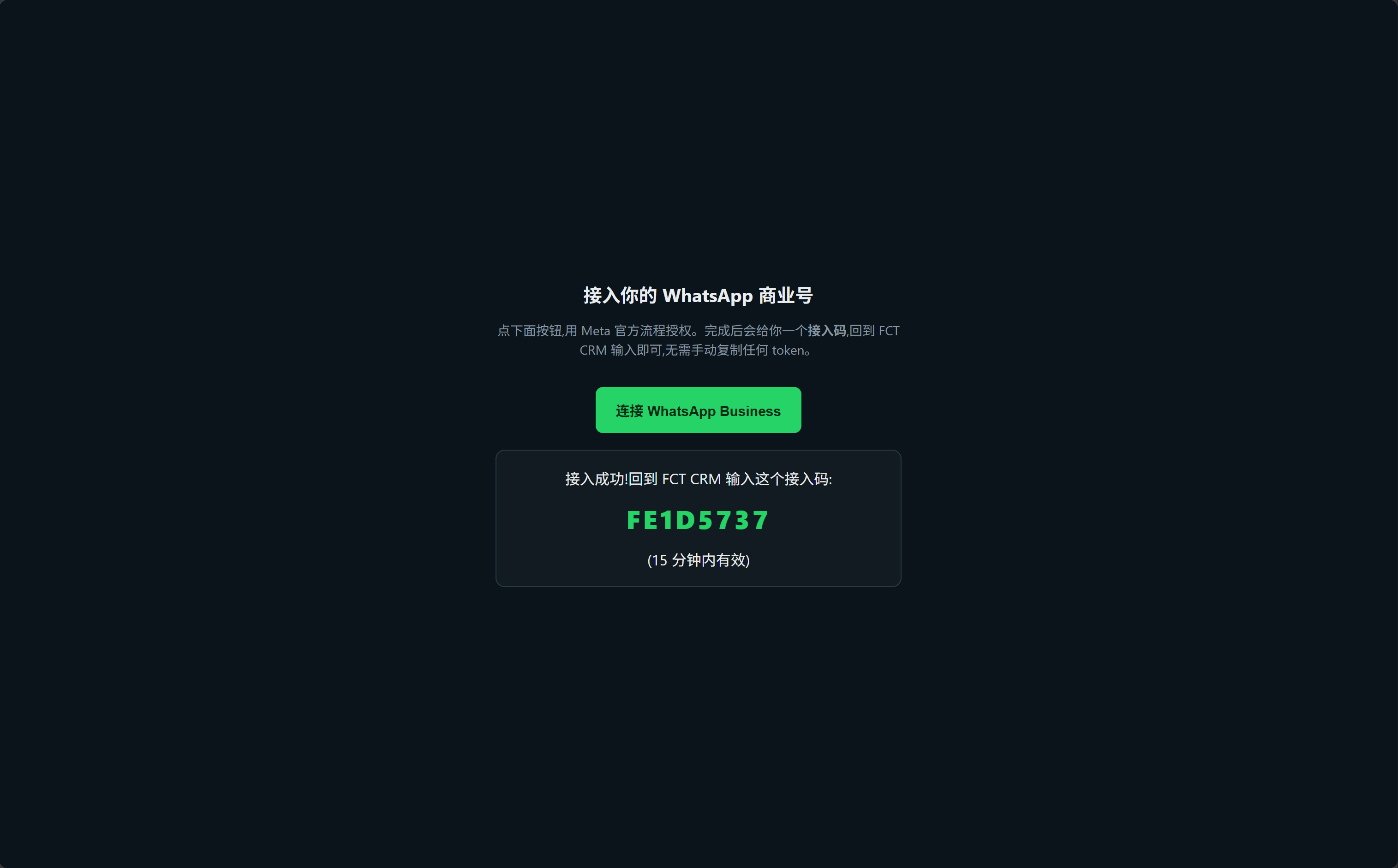
Go back to the FCT CRM app. Once authorization is complete, it normally connects automatically and there is nothing more to do. If it does not connect automatically, paste the pickup code into the input box in the Connect WABA (official) popup and click Connect.
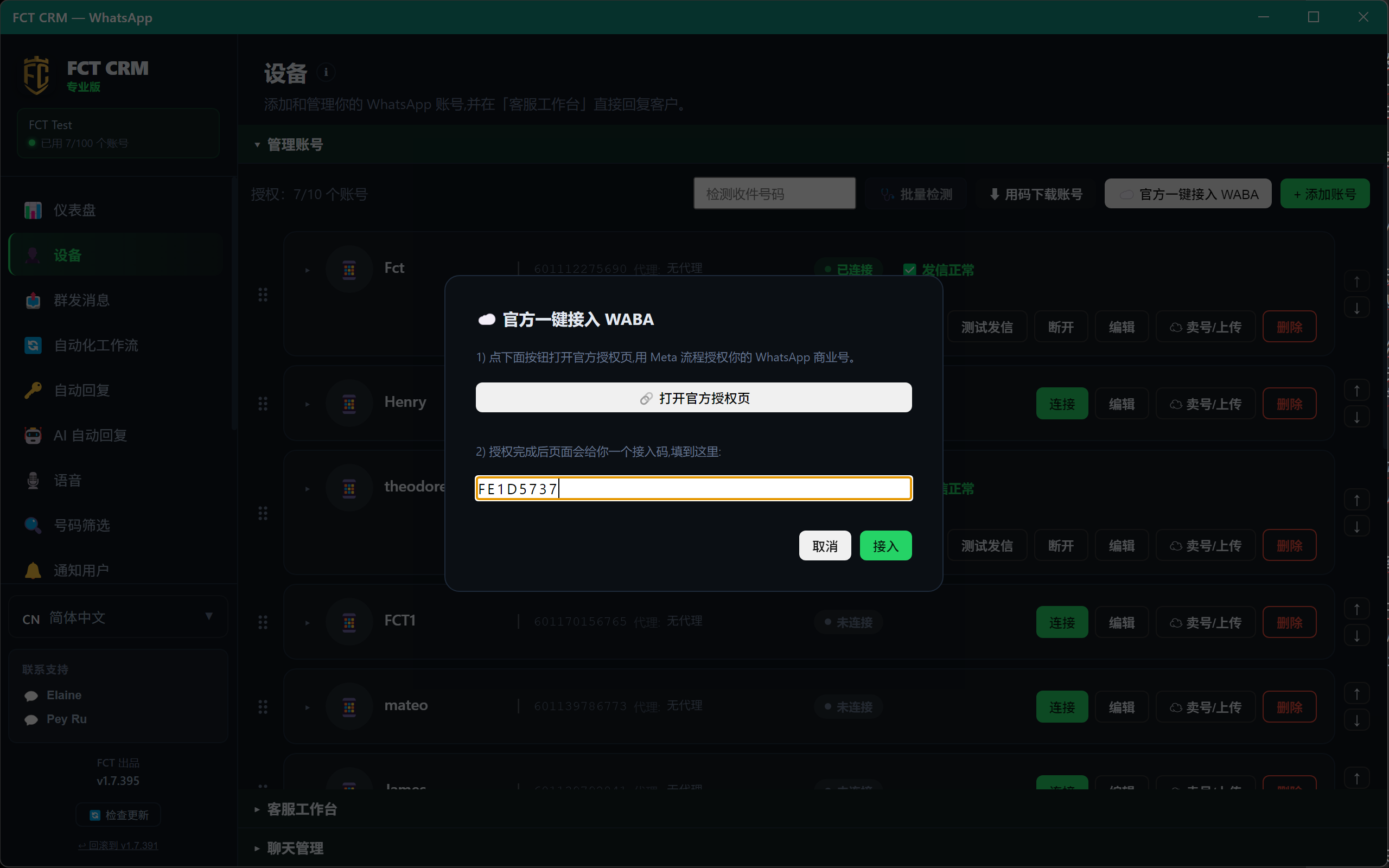
- Go back to FCT CRM. The Connect WABA (official) popup should still be open. If it has been closed, click Connect WABA (official) on the Instances page again.
- Type the 8-character pickup code into the input box at the bottom of the popup.
- Click the green Connect button. When it succeeds, you see the message "Connected — account created".
- If the pickup code is more than 15 minutes old, click Open authorization page and go through the process again.
10. Done! The WABA number appears in the Instances list
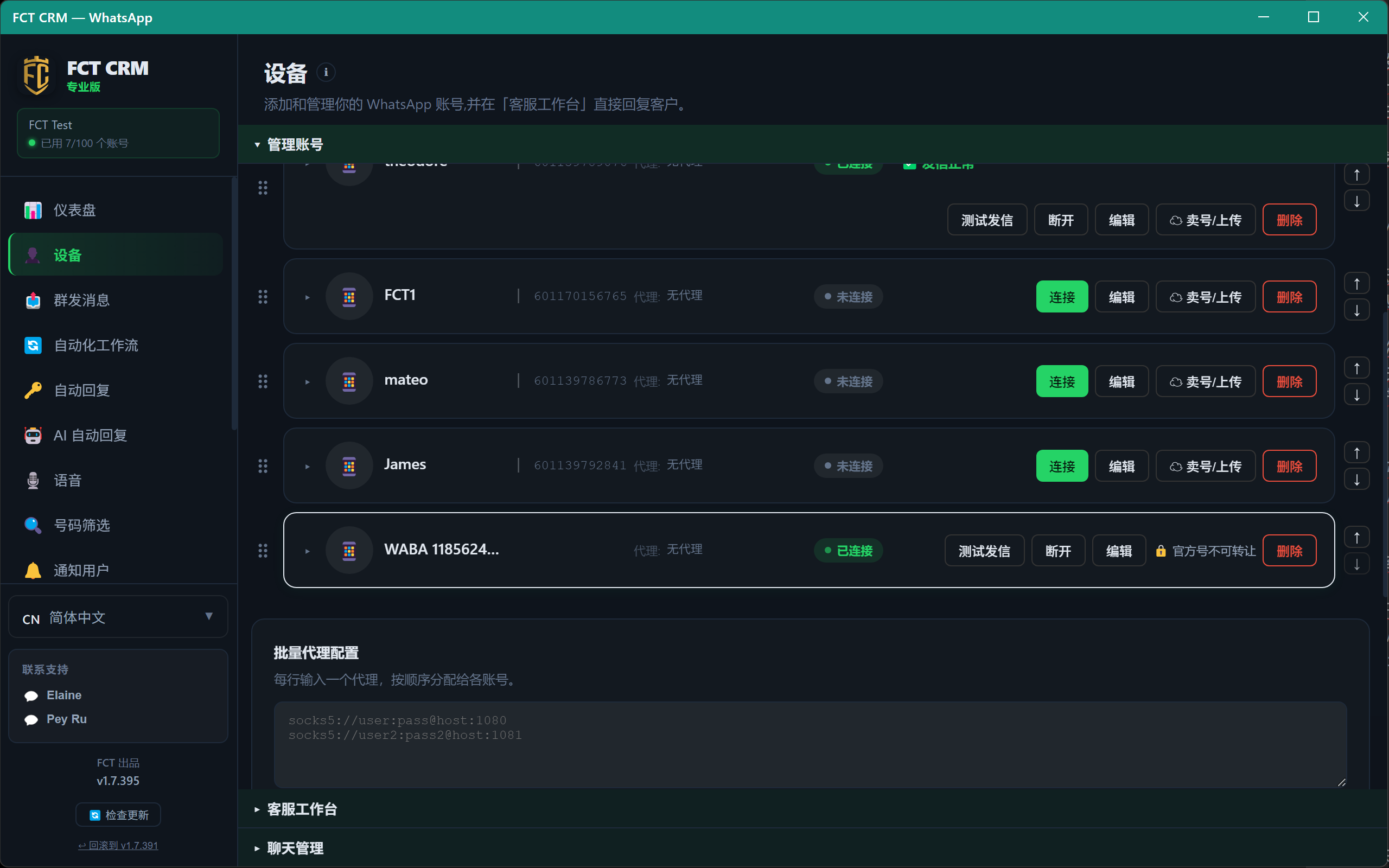
After a successful connection, a new WABA account appears in the Instances list. Its status shows Connected, and it carries the 🔒 Official number badge (WABA numbers and ordinary QR numbers are managed separately when it comes to permissions).
A number already in use in the WhatsApp Business App on a phone (Coexistence)
If the number is already in use in the WhatsApp Business App on a phone, you do not need a new number: choose "Keep the phone app, connect both (保留手机 App,一起接入)". The same number then keeps working in the phone app as usual, while FCT CRM replies automatically at the same time.
What happens after connecting
| WhatsApp Business App on the phone | FCT CRM | |
|---|---|---|
| Receiving messages | Received as usual | Also received, with auto-replies / workflows as usual |
| Sending messages | Messages the owner sends from the phone are free and not limited by the 24-hour window | Automatic messages follow the WABA rules (outside the 24-hour window a template is required, and Meta charges for it). Messages the owner sends from the phone also show up in CSW |
| Contacts | Unchanged | The phone's contacts are synced in (names already in the CRM are not overwritten) |
| Chat history | Unchanged | The last 180 days of one-to-one chats are synced in (as records only; old messages do not get auto-replies) |
Before you start
- The number has been genuinely used in the WhatsApp Business App (not ordinary WhatsApp) for at least 7 days (the longer the better; a freshly registered number is rejected by Meta).
- The phone app is updated to 2.24.17 or later.
- The number is not connected to another platform (another CRM / API provider). If it was, disconnect it on the phone first (see "How to stop using it" below).
- A Facebook account that can manage your Business portfolio.
- Keep the phone next to you: you need it to scan a QR code during the process.
Do not also connect the same number to FCT CRM by QR scan
A Coexistence number is already connected to FCT CRM through the official API. Do not also add the same number as a QR number with "scan to log in". During onboarding Meta disconnects the phone app's existing "Linked devices". You can reconnect WhatsApp Web / the Mac app afterwards; the Windows WhatsApp app is not supported, and messages sent from the Windows app do not appear in FCT CRM.
Step-by-step
- On the Instances page in FCT CRM, click ☁️ Connect WABA (official) → Open authorization page.
- On the authorization page, click "Keep the phone app, connect both (保留手机 App,一起接入)" at the bottom (not the green button above it).
- Meta popup: confirm the Facebook account you are logged in with, and click Continue / Get started.
- Choose the Business portfolio and click Next.
- Choose Connect your existing WhatsApp Business App and click Next.
- Enter the number that is on the phone's WhatsApp Business App and click Next. A QR code appears on the computer. Do not close this screen.
- Pick up the phone, open the WhatsApp Business App, and scan the QR code on the computer.
- The phone receives a message from Facebook. Tap Connect, then Continue on Business Platform.
- Choose whether to share chat history: choose Share all chats and confirm. This choice cannot be changed later. If you choose not to share, FCT CRM cannot see your earlier chats.
- Back on the computer, confirm the business name and time zone, click Next → confirm the permissions → Finish.
- The authorization page shows "Connected" and a pickup code. FCT CRM usually connects automatically (if not, paste the pickup code into the app).
- When the new WABA account appears in the Instances list with the green "📱 Phone app too" badge, you are done.
Syncing takes from a few minutes to a few hours; keep the phone app open
Contacts and chat history only start syncing after onboarding. Keep the phone unlocked, the WhatsApp Business App open and the network stable. A number with a lot of history can take several hours. New messages send and arrive as usual during the sync and are not affected.
Be sure to remember: open the phone app at least once every 14 days
If the WhatsApp Business App on the phone is not opened for about 14 days, Meta automatically disconnects it from FCT CRM (the number is not banned and the phone keeps working; FCT CRM just stops receiving messages). When that happens, the account card shows the red text "Disconnected from the phone app". To fix it, open WhatsApp Business on the phone, then go through the onboarding steps above again in FCT CRM.
Features that do not work
Meta's Coexistence documentation lists the features that are not supported after connecting: broadcast lists (existing ones become read-only and new ones cannot be created), automatic greeting / away messages, quick replies, labels, catalog / orders, disappearing messages, view once, live location, and voice / video calls. Group chats do not come into FCT CRM; only one-to-one chats do. FCT CRM has replacements for most of these (broadcasts, auto-replies, workflows and so on).
How to stop using it / go back to the phone only
Stopping must be done on the phone (deleting the account in FCT CRM only stops FCT CRM from receiving messages; the number still counts as connected):
- Open the WhatsApp Business App on the phone.
- Go to Settings → Account → Business Platform (some versions call it Connected platform).
- Tap the currently connected platform (the Meta app FCT CRM uses for onboarding), read the explanation and tap Next, then tap Disconnect.
- Back in FCT CRM, delete this WABA account on the Instances page.
After disconnecting: the number and the chats and contacts on the phone are all kept. The phone app keeps working and becomes an ordinary WhatsApp Business App again. The chat history already synced into FCT CRM also stays on the computer.
Do not "disconnect" by deleting or reinstalling the app
Do not uninstall the app or delete the WhatsApp Business account on the phone to solve a problem. That wipes the number's usage history, and you may then have to use it for several more weeks before it can be connected again. To disconnect, use "Settings → Account → Business Platform" as above.
Important reminders
A QR number and a WABA number are mutually exclusive
Once more: a phone number can only be a QR-scanned number or a WABA number. It cannot be both. Never take an existing QR number that is in use and convert it to WABA, because that number will freeze inside WhatsApp. Please be sure to use a brand-new phone number for WABA onboarding.
A newly created Business still needs Business Verification before it can send in volume
Right after onboarding, Meta shows the notice "Before you can begin messaging, ... will need to verify your business". An unverified WABA can be used straight away, but in every 24 hours it can only start conversations with 250 new customers (this is not a count of replies: when a customer messages you first and you reply inside the 24-hour window, it does not use this quota, and you can reply without limit). To raise the quota, add more numbers or get the green verified badge, you need to go through Business Verification separately (submit your company documents under business.facebook.com → Settings → Business info / Security Center). After verification passes and your sending quality is good, the quota rises automatically in tiers: 250, then 1,000, then 10,000, then 100,000, then unlimited.
The 24-hour customer service window
You can only reply freely with messages of any content when the customer has contacted you within the last 24 hours. To contact a customer again after the 24-hour window has passed, you must use a message template approved by Meta. You cannot simply send ordinary text.
Conversation fees are charged directly by Meta
The conversation fees of an official WhatsApp number are charged to you directly by Meta, per message (to the credit card added above). They are a completely separate bill from the FCT CRM software subscription fee, and we do not collect this money on Meta's behalf.
FAQ and troubleshooting
What do I do when the red text "WABA access expired" appears on the account?
It means Meta no longer accepts the authorization of this number, so nothing sends and nothing arrives. Follow the prompt and go through the WABA onboarding once more, choosing the same number. The number and its chat history are both kept, and the red text disappears by itself once it is connected again.
What do I do when the red text "Disconnected from the phone app" appears on the account? (Coexistence numbers)
Usually the WhatsApp Business App on the phone was not opened for about 14 days, and Meta disconnected it automatically. The number is fine and the phone keeps working. Open WhatsApp Business on the phone, then go through the Coexistence onboarding again in FCT CRM. Note: after reconnecting, earlier chat history is not synced a second time (Meta only syncs once per onboarding), but everything already synced into FCT CRM is still there.
What do I do when Coexistence onboarding says "Your phone number isn't eligible..."?
The number has not been used in the WhatsApp Business App long enough (at least 7 days; more than a month is recommended). Keep using it normally for a while and try again. Do not delete it and register again, because that starts the count from zero.
What do I do when it says "This feature isn't available for phone numbers from this region"?
Meta has not opened Coexistence to numbers from this country / region yet. You can only use a brand-new number with the normal onboarding.
It says "This account is shared with another partner", or the number is already connected to another platform?
First disconnect the old platform on the phone under Settings → Account → Business Platform, then connect again.
The yellow text "Chat history was not synced" appears on the account?
Either you chose not to share chat history on the phone during onboarding, or the sync timed out. New messages are not affected; you just cannot see earlier chats. If you want the earlier history, the only way is to disconnect on the phone, connect again, and choose Share all chats.
What do I do when it says "No WABA place left"?
The number of WABA numbers each licence can connect is fixed. To connect a new number, buy another WABA slot first, or delete an existing WABA number first. Slots are bought under Buy extra WABA official numbers on the Settings page and viewed under My WABA official numbers. Each number expires on its own. When it lapses it only stops sending, the data is kept, and renewing restores it. The validity of a slot starts counting from the moment you pay, so buy it when you are ready to onboard.
What do I do when it says "WABA number swaps for this month are used up"?
Too many different numbers have been connected within 30 days. Please try again next month, or buy more WABA slots.
What do I do when the popup shows "... can't onboard customers right now"?
This usually means an account security check on Meta's side got stuck at that moment (for example, a notice such as "Verify that it's you" appeared at the top), so the provider's onboarding status temporarily did not take effect. It does not mean you filled in your details wrongly.
- First refresh the page, or log out of your Facebook account, log back in and try once more.
- Confirm that the following items are all in a "green / completed" state (normally you do not need to do anything yourself; if it stays blocked for a long time, let us know): the App is already Live, the Business is already Verified, and the WhatsApp-related permissions are already at Advanced Access.
- If it keeps happening, do not choose "Yes, share my contact information" yet. Note down the Session ID and contact us so we can help investigate (this is an issue with the onboarding status on the provider's side, not a problem with your number or your details).