Number Filter
Check which numbers have WhatsApp, and collect the members of your groups.
Number Checker: paste numbers and check them.
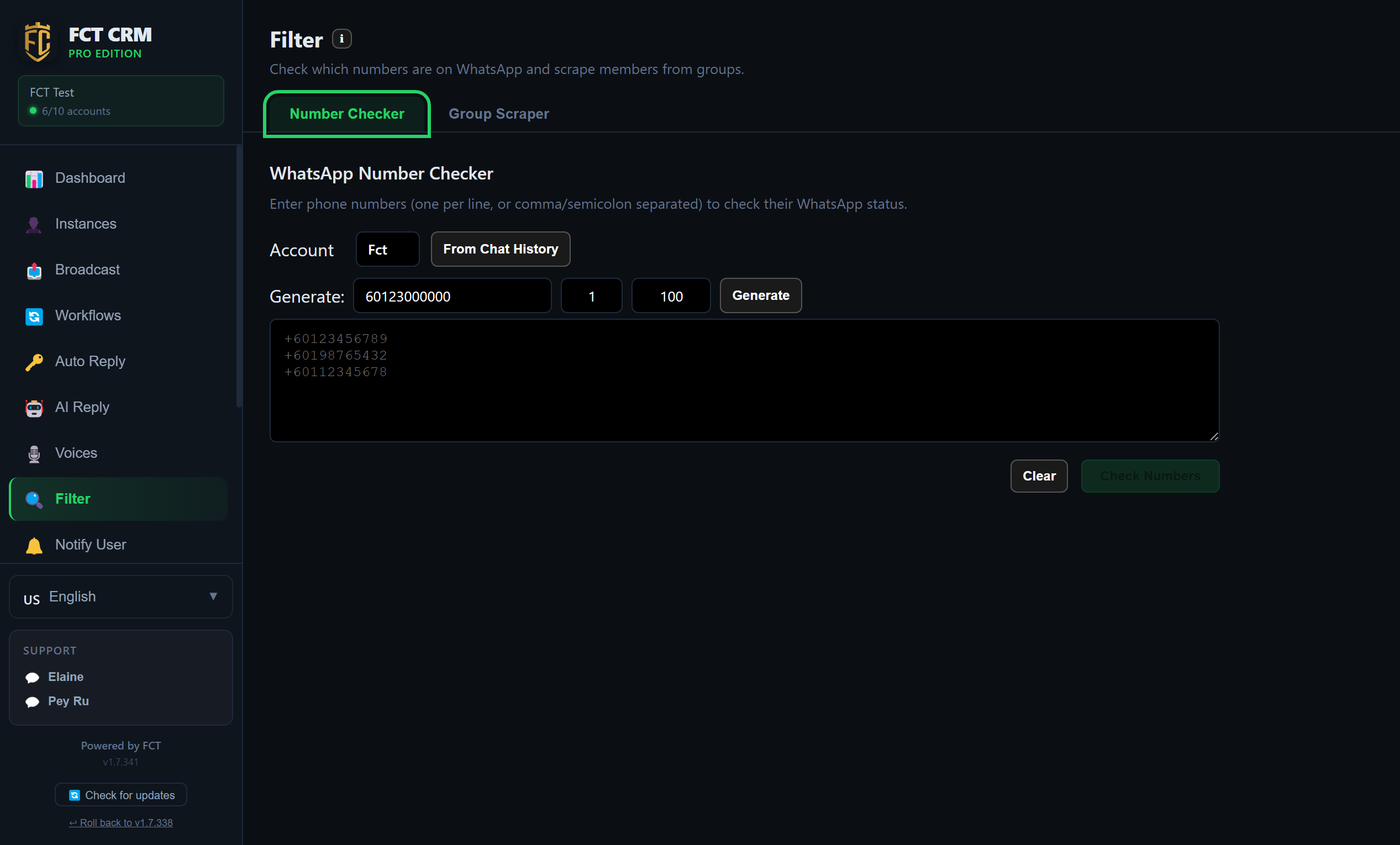
- Click Filter in the sidebar and stay on the Number Checker tab.
- In the Account dropdown, choose a connected WhatsApp account. The check is done through this account.
- Paste the numbers into the large text box below, one per line. You can also separate them with commas or semicolons. The number of entries you have typed is shown below the box.
- If you do not want to paste by hand, click From Chat History to fill in the numbers this account has chatted with automatically. You can also fill in a starting number, a step and a quantity on the Generate: row and then click Generate to get a run of consecutive numbers.
- Click Check Numbers at the bottom right. The page shows the progress of the check, and you can click Stop partway through.
- When the check finishes, the results are listed, with how many are on WhatsApp and how many are not written at the top. Click Select all WA to select everyone who has WhatsApp, then click the button that saves them to Contacts. Or click Export Excel to save them as a file.
- To start over, click Clear.
Numbers need the country code
Please use the full international format, for example 60123456789. Numbers in the wrong format are marked as invalid.
Group Scraper: fetch the members of your groups.
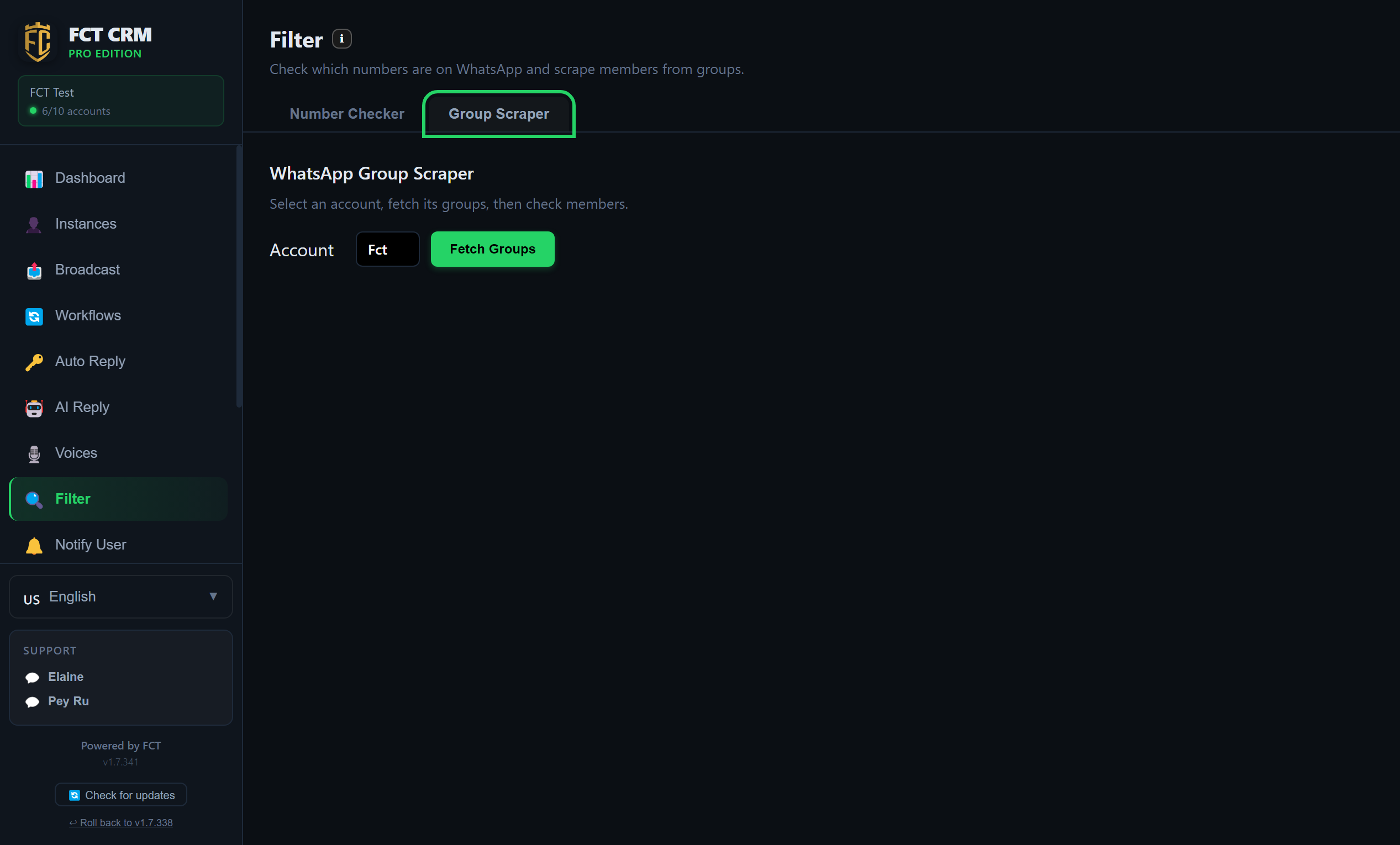
- Click the Group Scraper tab and choose a connected account in the Account dropdown.
- Click the green Fetch Groups button and wait a moment. The groups this account has joined are listed, each with its number of members written after it.
- If there are too many groups, type part of a group's name into the search box to filter them. Tick the groups you want to scrape. You can choose several at once.
- Click Check Members of Selected Groups. The page shows the progress, and you can click Pause, Resume or Stop partway through.
- When it finishes, a table of members appears below, showing status, phone, name and type. Click Select all WA to select everyone, or click Select Personal or Select Business to select only one kind.
- Once you have made your selection, click the button that saves them to Contacts, or click Save as contact list to create a list directly, which you can then send to from Broadcast. You can also click Export Excel.
- When the group list takes up too much room, click Collapse groups to fold it away.
Use a QR-scanned account
An official WABA account cannot scrape groups, so please use a QR-scanned account instead. Scraping does not work while the account is disconnected either. Connect it on the Instances page first.